Mobile uploads allow you to upload data from the field to DroneDeploy to begin processing the map without using an SD card or returning to an office.
The mobile upload process occurs in two steps:
Images transfer from the drone to the mobile device.
Photos upload from the mobile device to DroneDeploy.
Availability: Who has access?
Mobile uploads are available for all paid DroneDeploy subscriptions.
Hardware requirements
To use mobile uploads, ensure the hardware meets these requirements:
iOS devices with at least 2GB of free storage space
DJI P4, P4P/P4A, P4P V2, Mavic Pro, Mavic 2 Pro, Mavic Air 2, Mavic Air 2s, M200/M210, M3E, Matrice 4E/T, Inspire 2
DJI Mavic 3 Enterprise, RC Pro Enterprise Controller
DJI Matrice 4 Enterprise/Thermal, RC Plus 2 Controller
[!IMPORTANT] Keep the DroneDeploy app updated before starting a flight. Avoid updating the app during an active upload to ensure the process completes successfully.
How to use mobile uploads
Once the flight is complete, follow these steps to upload images:
Select Upload Now to begin the transfer process.
Choosing Upload Later readies the map for a standard SD card upload.
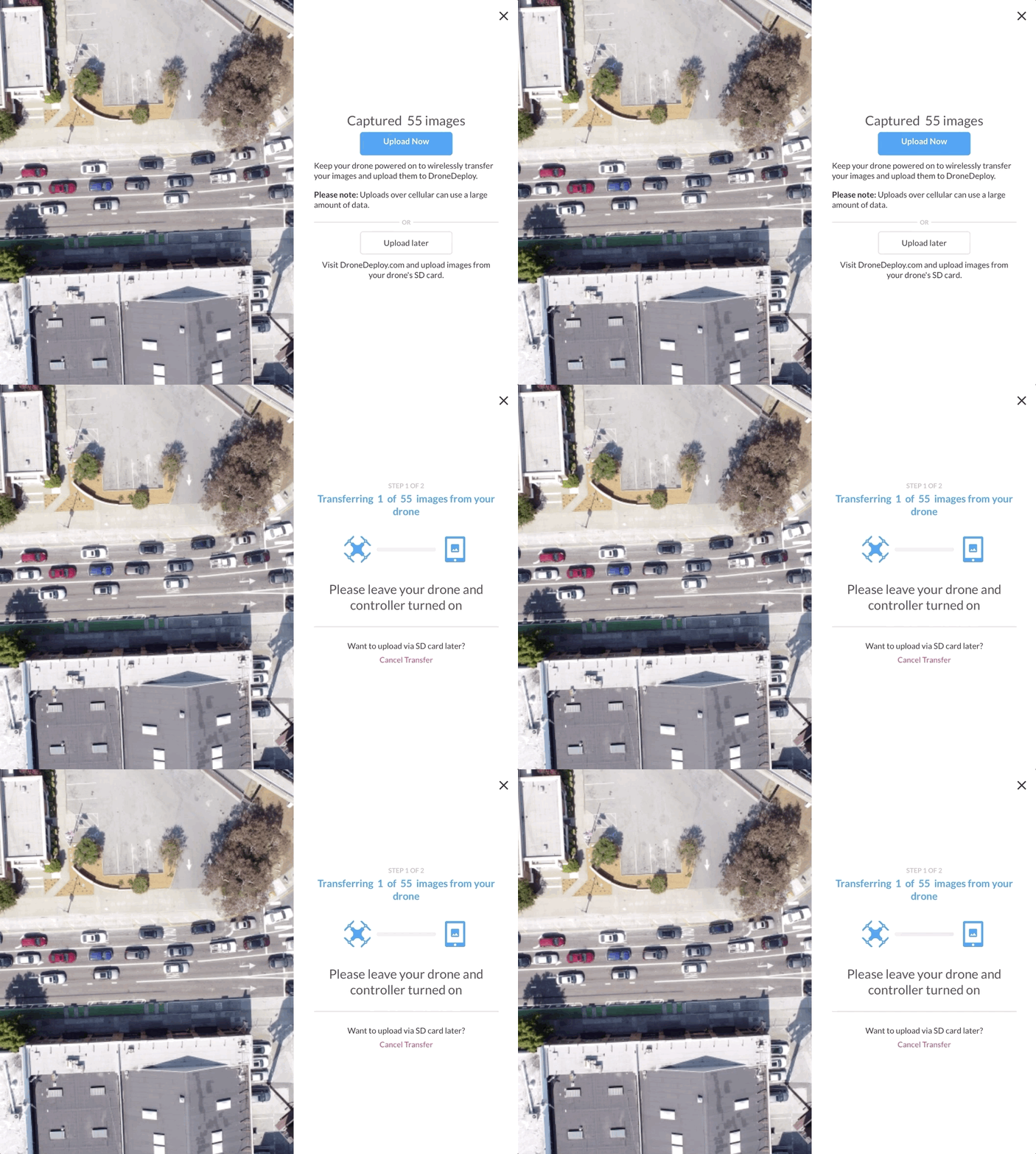
Ensure the drone has at least 30% battery charge.
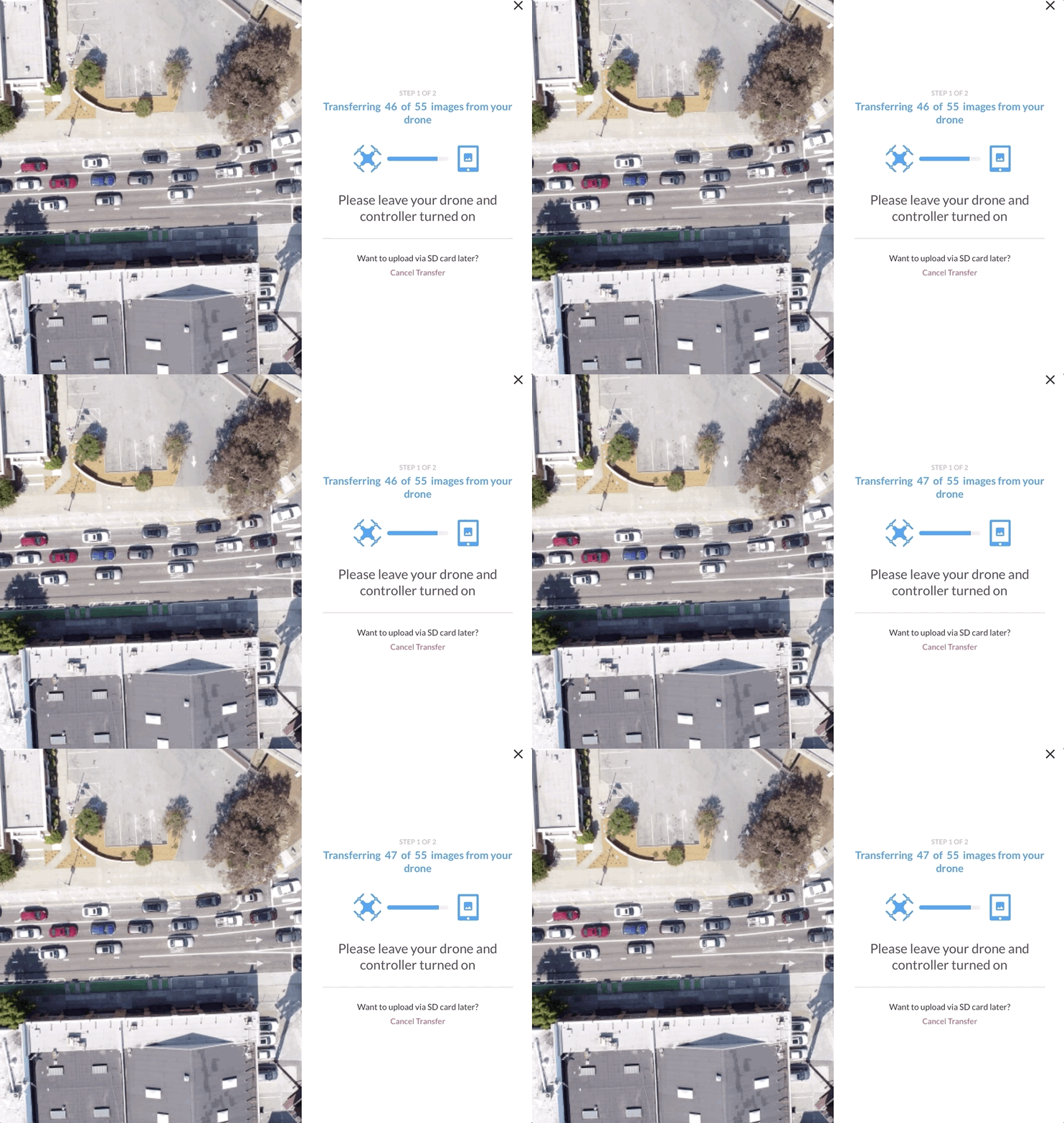
Maintain the connection between the drone and controller. Keep the DroneDeploy app open and the USB cable connected during Step 1.

Once Step 1 is complete, the images begin uploading to the cloud. The drone and controller can be turned off during this stage.
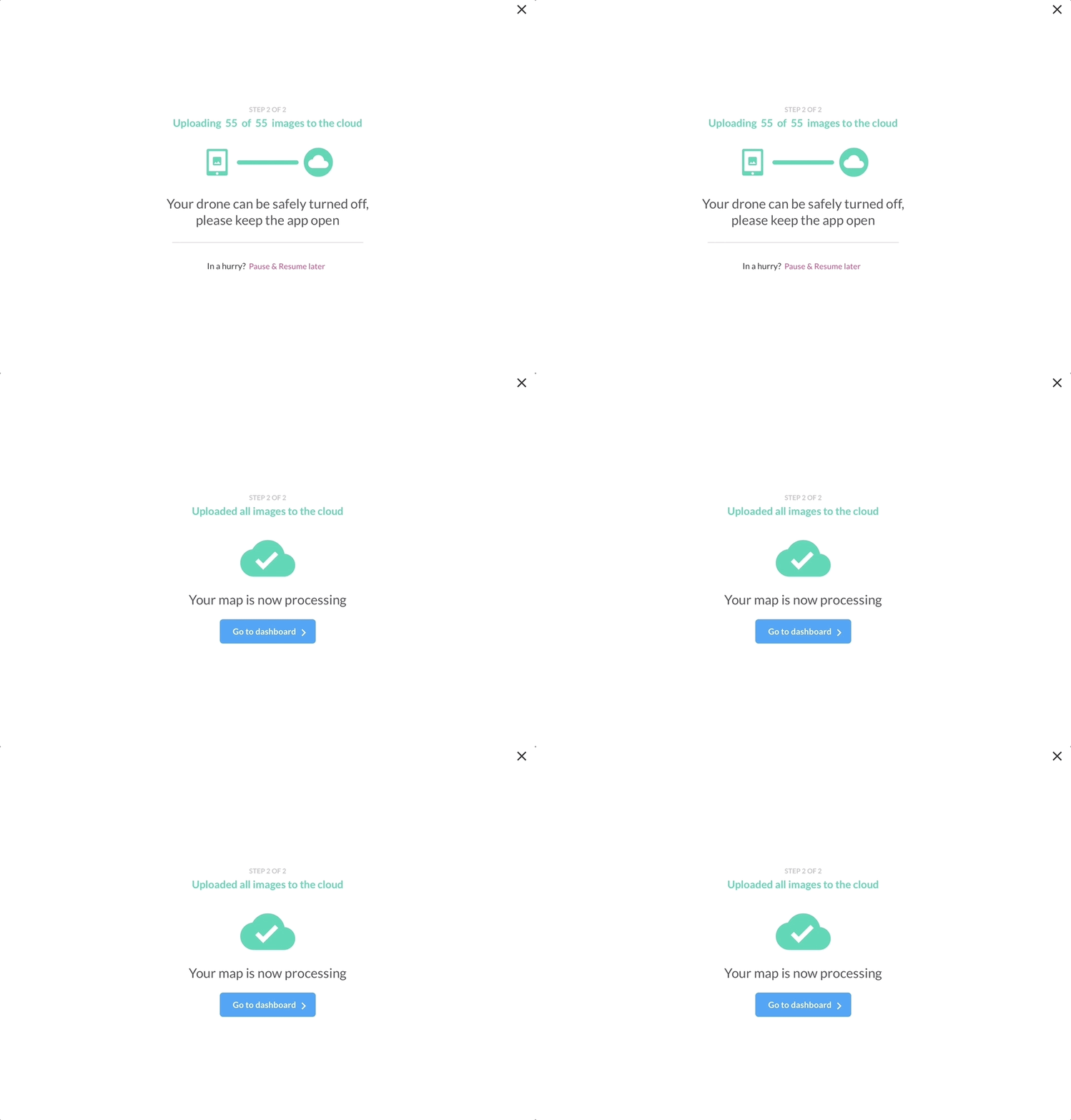
Select Pause and Resume Later if you need to complete the upload at a different location or with a stronger internet connection.
The map begins processing once all images reach the cloud.
Key features and considerations
Capacity: Mobile upload supports 1-1,000 images.
Flexibility: You can cancel a transfer by clicking Cancel Transfer. If clicked accidentally, return to the Mobile Upload page via the dashboard to resume.
Limitations
Multi-battery flights are unsupported.
Live Map must be disabled to use mobile uploads.
A single battery must have sufficient charge to complete the entire flight.
There is no support for Android devices.
FAQs
Q: Do I need to be a paid customer to use mobile uploads?
A: Yes, all paid users have access to mobile uploads.
Q: How long does a mobile upload take?
A: The transfer from the drone to the mobile device takes 5–20 minutes on average, depending on the number of images and signal strength. The upload to the cloud depends on Wi-Fi or cellular speed.
Q: Do I need an internet connection to transfer images from the drone to my mobile device?
A: No. Step 1 (transferring to the device) can be completed offline. Step 2 (uploading to the cloud) requires Wi-Fi or a cellular connection.
Q: Should I keep a copy of the images on a computer or SD card?
A: We recommend saving original images to a computer or external hard drive as a best practice.
Q: What if the app displays "Image Missing" during a desktop review?
A: This message occurs if the mobile device has an unstable connection. Restart the DroneDeploy app and connect to a stable Wi-Fi network to resume the upload.
v2.2