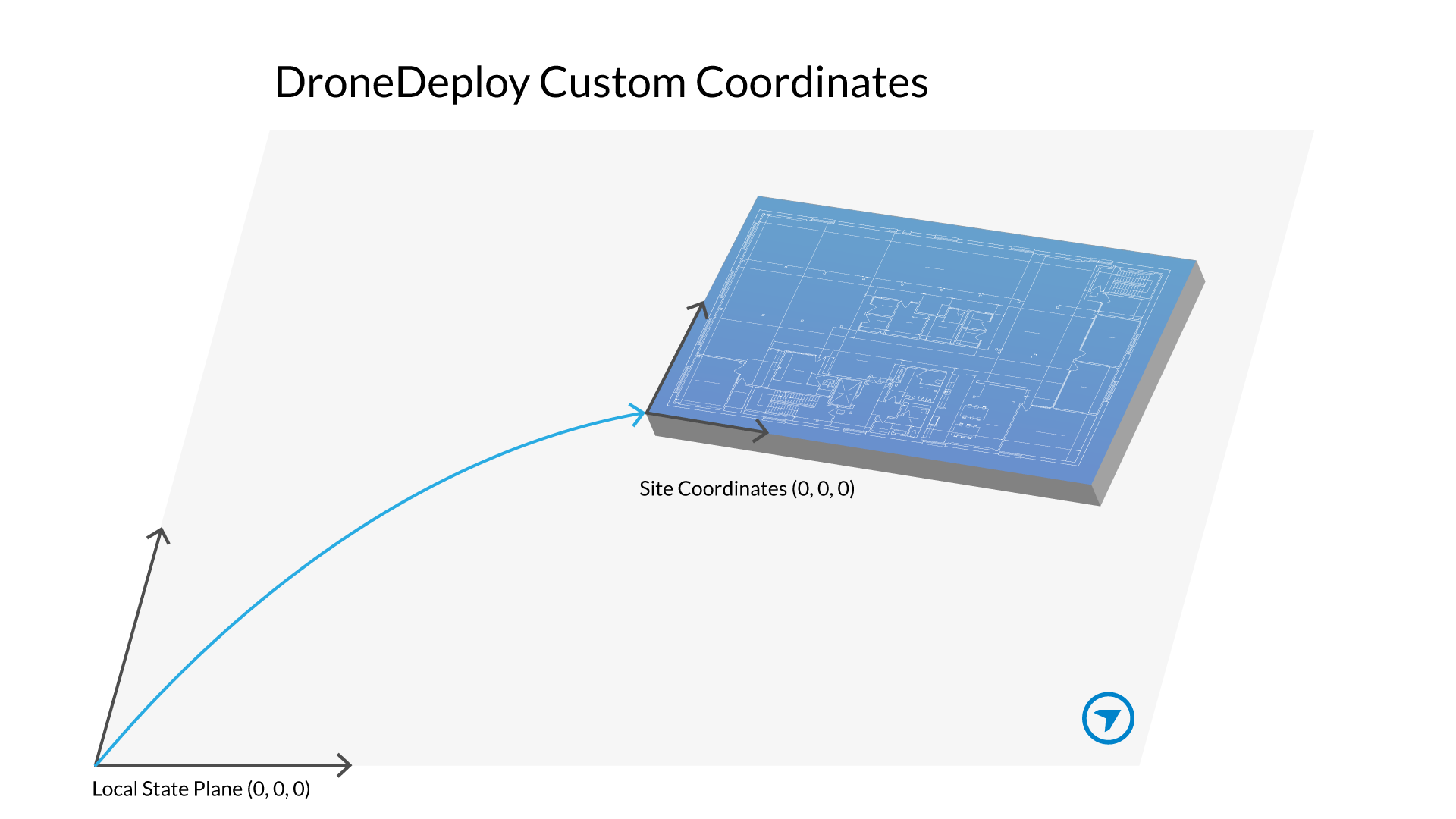
DroneDeploy allows you to specify a custom coordinate system for your projects. This is useful for site-specific reference systems based on a unique location or custom grid.
What is a custom coordinate system?
A custom coordinate system lets you use a site-specific reference system rather than a standard, globally known coordinate system (like WGS 84). Custom coordinate systems in DroneDeploy are currently managed through the Ground Control Point (GCP) workflow.
Availability
Exporting custom coordinate data requires an Advanced, Teams, or Enterprise subscription.
Individual subscribers may upload the custom coordinate data but will not see custom data when creating exports. If you are interested in reviewing your subscription and upgrading, please reach out to us here.
How to use custom coordinate systems
The process for uploading data from a custom coordinate system closely resembles that of a standard coordinate system, with the key distinction being the utilization of the Custom Coordinates CSV template.
This requires a transformation for each surveyed ground control point (GCP) or checkpoint from a known coordinate system to a custom coordinate system.
Step 1: Prepare your custom coordinate data
Transform your coordinates from a known coordinate system to your custom coordinate system.
-
Download the correct .csv template:
Fill in the template. The custom templates include three additional columns for Custom Northing, Custom Easting, and Custom Elevation, accommodating the specific parameters of the custom coordinate system.
Step 2: Upload the CSV file
Upload your .csv file with your GCPs and Checkpoints.
See Processing GCPs with DroneDeploy for detailed instructions on the GCP workflow.
Tip: You can also calibrate your project to a custom coordinate system. See Define a Project Level Custom Grid!
Step 3: Export in custom coordinates
After map processing completes successfully with GCPs, you see a new "Custom Coordinates" drop-down option in the Export projections menu.
Select this option to georeference your exported map in your custom coordinate system.
-
Click Export.
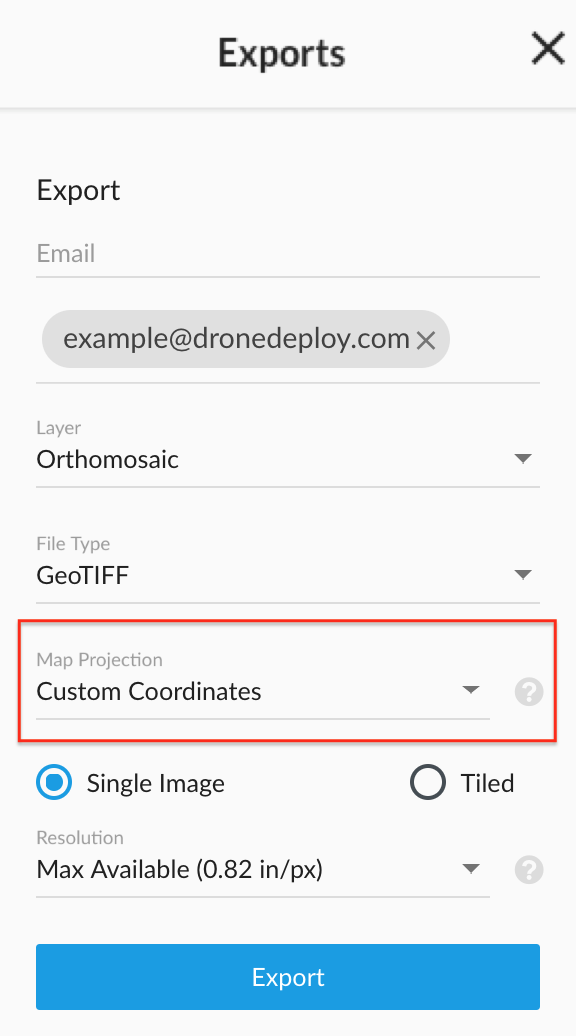
You will receive an email shortly after with a link to download the map in the specified EPSG projection.
Key features/details
Custom Reference: You can set up site-specific reference systems unique to your location.
GCP Workflow: Custom coordinate systems are integrated directly into the GCP Workflow for accurate georeferencing.
Export Options: A specific "Custom Coordinates" projection option becomes available in the Export projections menu once your map processes with custom GCPs.
Limitations
Subscription Required: Exporting custom coordinate data is limited to Advanced, Teams, and Enterprise subscriptions.
GCP Workflow Dependency: Custom coordinate systems must currently be performed using the GCP Workflow.
V2.2