Overview
Dock Manual Flight lets you take direct control of a docked DJI drone from the DroneDeploy web app for rapid, ad-hoc inspections and safe, responsive site operations. This feature includes two control methods: WASD Flight for keyboard-based piloting and Fly-to-Point for map-directed navigation with a mouse.
Availability
Dock Manual Flight is available for users on the Dock Automation plan for the DJI Dock 2 and Dock 3.
Capabilities
Dock Manual Flight enables you to perform the following actions today:
Mission Pause: Pause an active mission to take manual control of the drone for an inspection or correction. You can then resume the original mission or use Return To Home (RTH) to complete your manual flight.
Manual Takeoff: Start a flight directly into Manual Flight from the New Flight Plan menu after setting a takeoff altitude and passing pre-flight checks.
Fly-to-Point: While in manual flight, click a location on the map and select Fly; the drone navigates there while maintaining its current altitude. You can Pause anytime to stop movement and hover.
Photo/Video Capture: Capture photos and videos during manual flight using the on-screen controls.
How to use Dock Manual Flight
You can control the drone using either keyboard controls or map-directed navigation (Fly-to-Point).
WASD Flight (Keyboard Piloting)
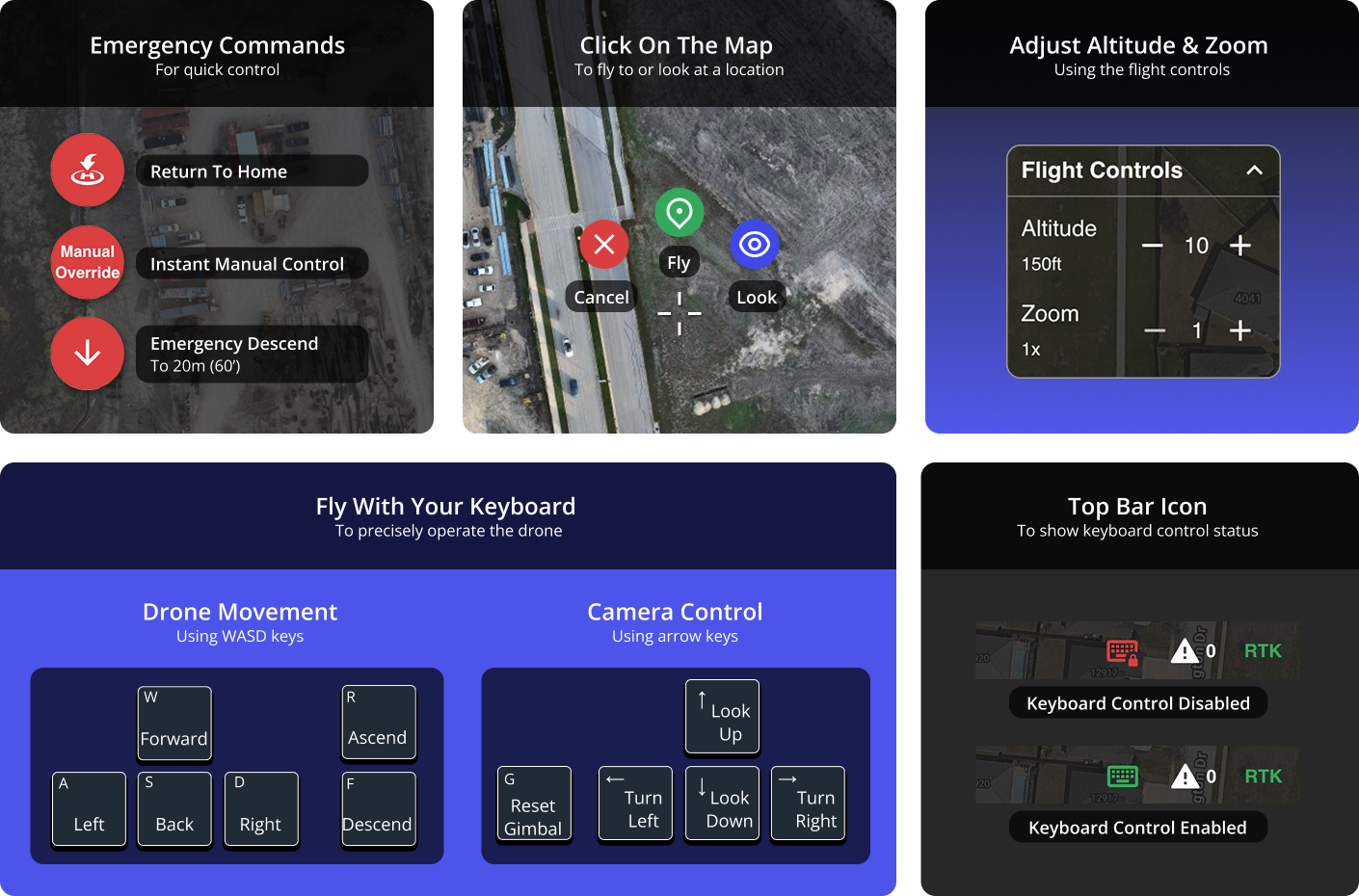
Use the keyboard to fly directly with low latency. A top-bar keyboard icon indicates whether keyboard control is active (green for enabled, gray for disabled).
Tip: Ensure the browser tab has focus to receive keyboard input.
| Action | Keyboard |
|---|---|
| Move forward | W |
| Move backward | S |
| Strafe left | A |
| Strafe right | D |
| Ascend | R |
| Descend | F |
| Yaw left (Look left) | Left Arrow |
| Yaw right (Look right) | Right Arrow |
| Tilt gimbal up | Up Arrow |
| Tilt gimbal down | Down Arrow |
| Reset gimbal | G |
Visual Controls (Reference on-screen elements):
- Emergency Commands: Use these for quick control.
- Return To Home: Initiates the Return to Home sequence.
- Emergency Descend: Quickly descends to 20m (66 ft).
- Flight Controls: Adjust the drone's altitude and camera zoom.
- Altitude: Shows the current altitude (e.g., 390 ft).
- Zoom: Shows the current zoom level (e.g., 1x to 112x).
Fly-to-Point (Map-directed navigation)
This mode allows for map-based movement and camera positioning.
- Fly to a Location:
- Click a point on the map to set a destination.
- Select Fly.
- The drone travels at a constant altitude to that coordinate. You can select Pause at any time to stop movement and hover.
- Look at a Location:
- Click a point on the map to set a target.
- Select Look.
- The drone stays at its current location but rotates and tilts the gimbal to view the selected area.
Key Features/Details
Control Modes: Dock Manual Flight offers two distinct ways to pilot the drone: WASD Flight for precise keyboard operation and Fly-to-Point for general map navigation.
Low Latency: The WASD Flight mode is designed for direct, low-latency keyboard control, crucial for precise operations.
Camera Default: During flight transitions (using Fly-to-Point), the camera defaults to facing forward for better situational awareness. If you manually change the camera view, the system will not auto-override your selection when setting a new map point.
Altitude Maintenance: The Fly-to-Point feature automatically maintains the drone's current altitude while traveling, helping to simplify navigation. You can adjust the altitude while the drone is hovering.
Limitations and Safety Considerations
RTK Status: Confirm the Real-Time Kinematic (RTK) status before attempting precise navigation and always heed any on-screen warnings.
Obstacle Clearance: During travel, it is recommended to set the forward camera (by tapping G) to ensure the altitude is sufficient to clear any obstacles.
Keyboard Focus: The WASD Flight controls only work if the browser tab is currently in focus.
Frequently Asked Questions
Q: Can I start in Manual Flight without flying a mission?
A: Yes. Select Dock Manual Flight from the New Flight Plan menu, set your takeoff altitude, pass the pre-flight checks, and launch directly into manual control53.
Q: Can I resume my original mission after pausing?
A: Yes.
Q: Does Fly-to-Point change my altitude?
A: Fly-to-Point maintains the drone's current altitude while traveling to the selected map point. You can adjust altitude while hovering55.
V2.2