Import Flight Path: Keyhole Markup Language (KML) and GeoJSON File for Flight Planning
This feature allows you to use pre-defined boundaries from a Keyhole Markup Language (KML) or GeoJSON file to plan your flight missions. Planning flights with KML (.kml) and GeoJSON (.json) files gives you the flexibility to pre-plan missions with exact boundaries, even in remote areas.
This feature is an improvement to our previous KML/SHP import tool because you can upload GeoJSON file types, and you can upload files on Corridor plans. This is only available on the desktop application.
Availability
This functionality is available for Map and Corridor flight plans.
Supported file formats:
- KML (.kml)
- GeoJSON (.json)
Supported geometry:
- LineString
- Polygon
Simple shapefiles work best. Some very complicated shapefiles may fail to load, and sub-areas are known to be problematic. If this happens, try making a more straightforward file.
How to use the Import Flight Path Tool
Follow these steps to plan your flight using your KML or GeoJSON file.
-
Navigate to the Fly tab. Navigate to the Fly tab on the top panel of your project's dashboard.
-
Click Import. Click the Import button on the Import Flight Path panel.
- Select your file and click Open. Select a valid file, Google Earth .kml or .json, and click Open.
- Continue planning the flight. Ensure the file is loaded correctly and continue planning the flight.
Note: Flight paths can be edited in the app after uploading. Some more complicated shapes may be difficult to edit.
Creating a Keyhole Markup Language (KML) File
If you do not have a KML or GeoJSON file readily available, you can create one using Google Earth.
- Open Google Earth and locate the area of interest. Open Google Earth and locate the area you are interested in.
-
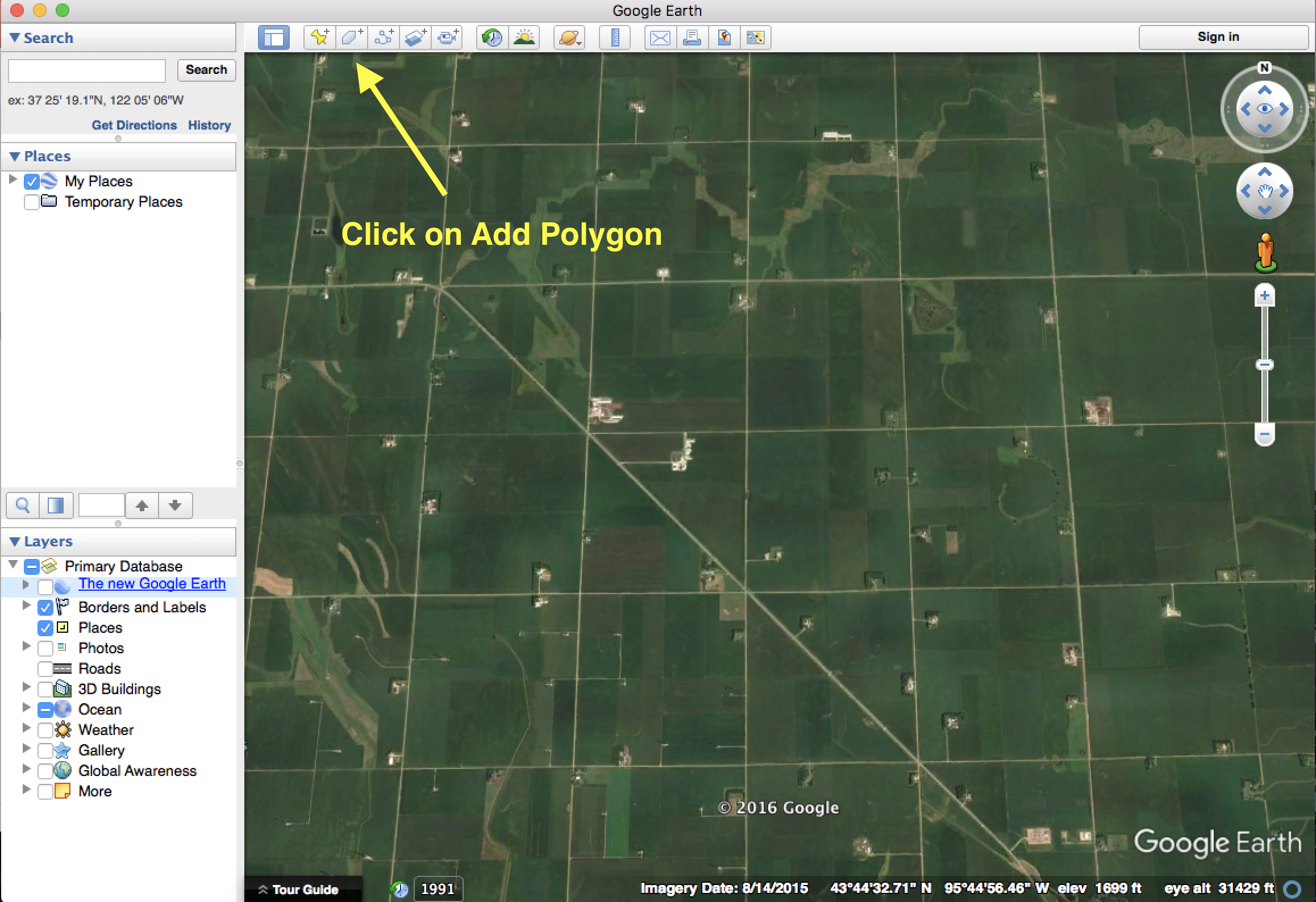
Click Add Polygon. Click Add Polygon in the menu bar.
-
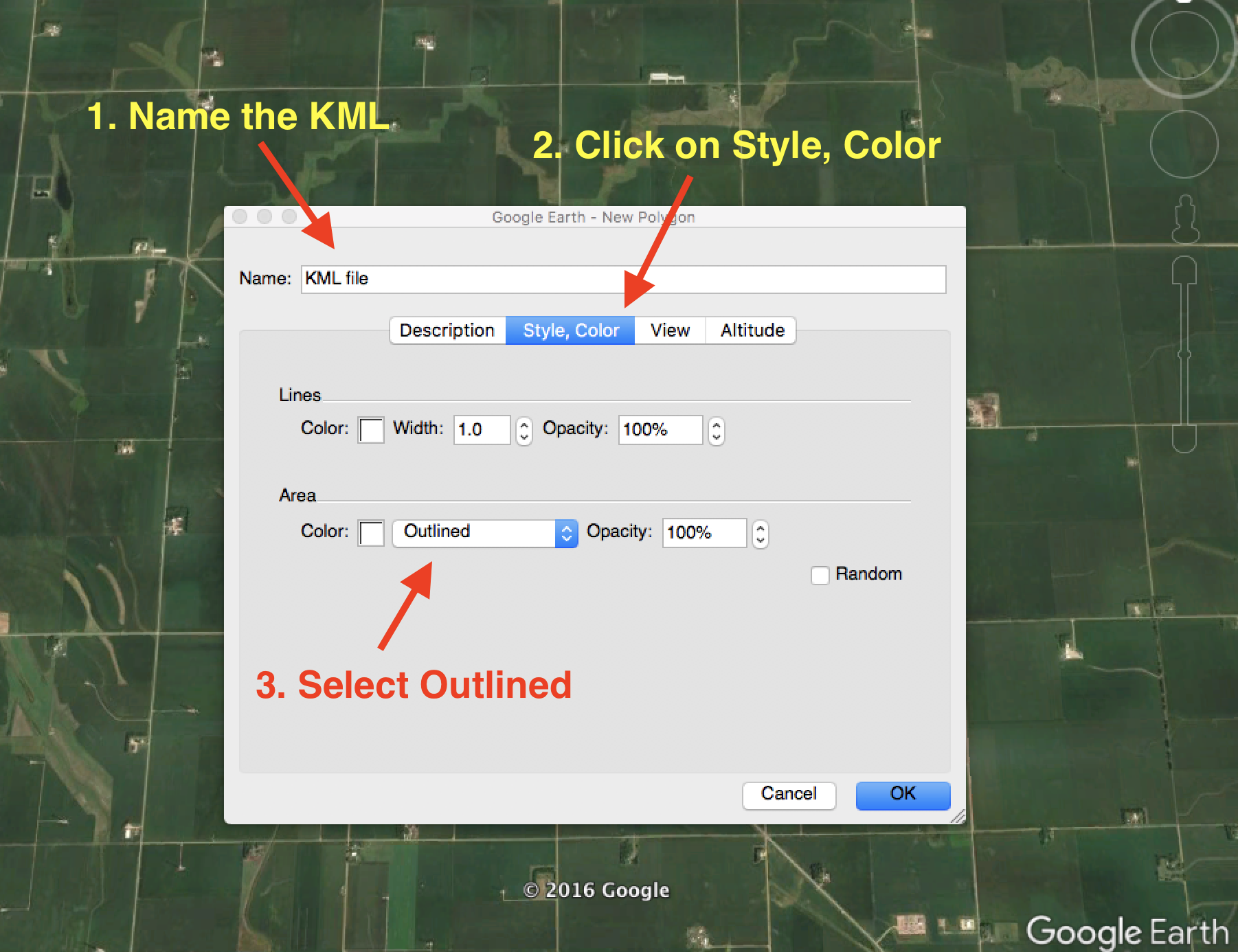
Name the Polygon and set the style. Name the Polygon. In the Style, Color menu, select Outlined.
-
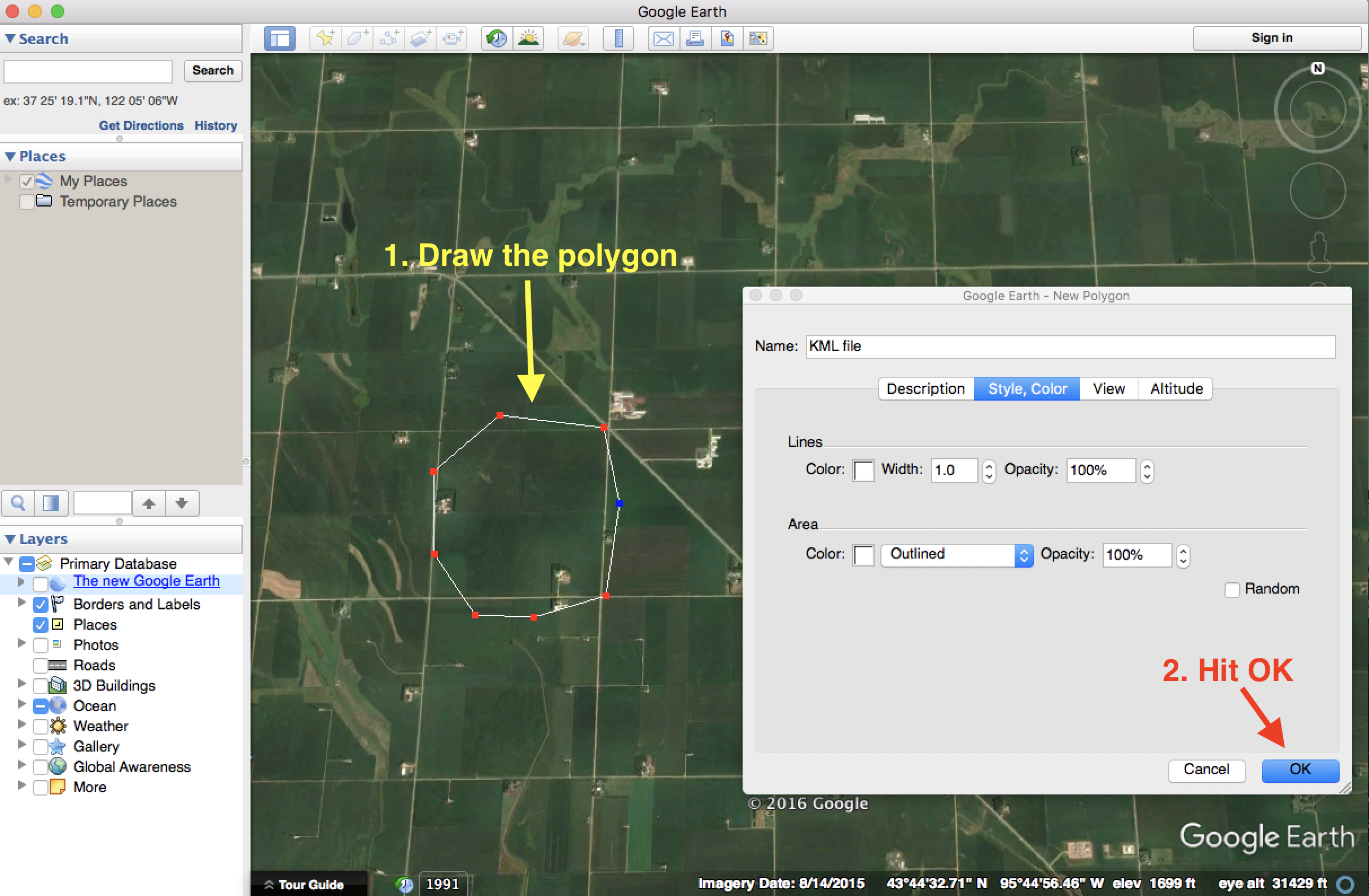
Draw the polygon and click OK. Draw the polygon and click OK when you finish.
-
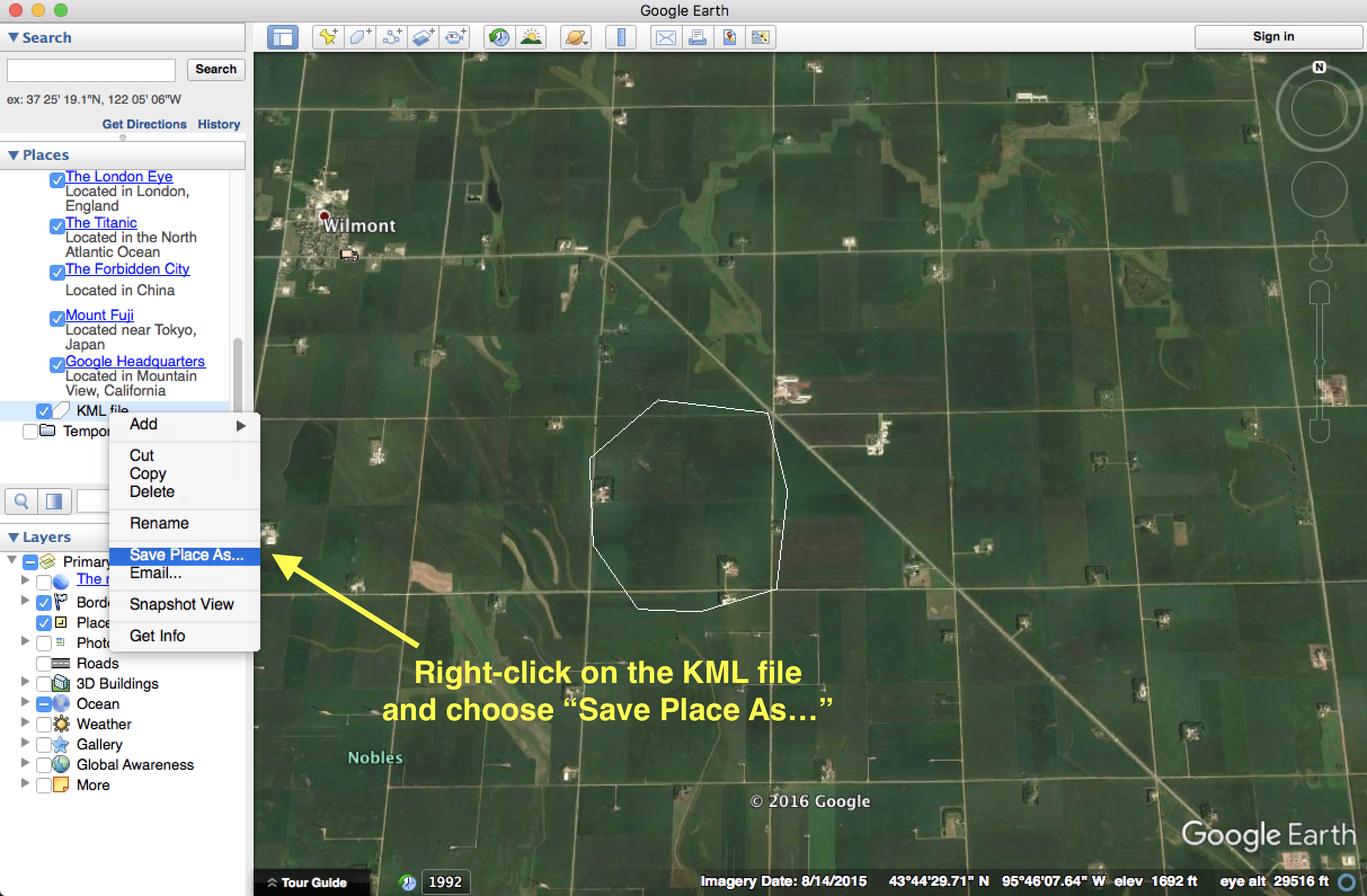
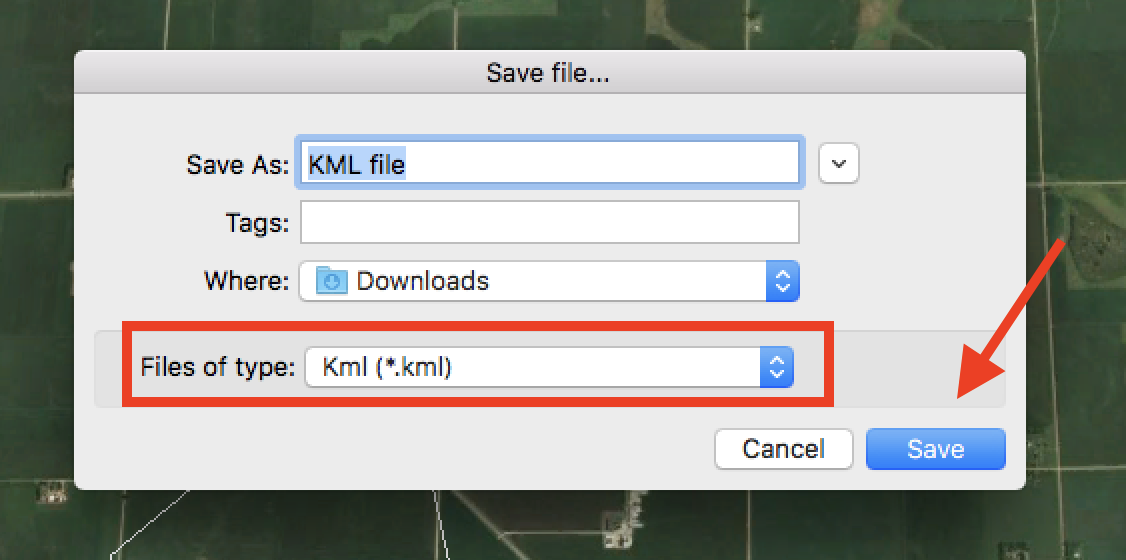
Save the file. In the Places window, right-click on the KML file created. Select Save Place As. Choose Kml (*.kml) Files of Type and click Save.
Limitations
- Complex polygon shapefiles are not yet supported. A complex polygon has other polygons inside of its boundaries.
- The Import Flight Path tool is only available on the desktop application.
FAQs
Q: Does DroneDeploy support other file types for flight planning import?
A: You can load Shapefiles as well, but they require a .shp extension and must have a projection of WGS84 to work correctly. Shapefiles must be a ZIP archive of the component files of a shapefile, including .shp, .shx, and .prj.
Q: Is there a file size limit for Shapefiles?
A: Yes, the size of any individual component file must be at most 500 megabytes.
Q: Can the Shapefile contain multiple areas?
A: The Shapefile may only include one continuous polygon and must have more than 2 coordinates.
v2.2