Overview
Offline Flight Planning allows you to store a project's map base layer on your mobile device or remote controller (RC) so you can fly and capture data without an internet connection. This is essential for flying in areas with limited or no cellular service.
Availability: who has access?
- Offline Flight Planning is available for all DroneDeploy accounts (free and paid).
- This feature is available on the DroneDeploy mobile application and supported remote controllers (e.g., M3E and Matrice 4E/T). It is not available on the web app for desktop or laptop computers.
How to use Offline Flight Planning:
To make a flight plan available for offline use, follow these steps:
- Connect to the internet. You must have a stable internet connection to download the necessary map tiles.
- Select the plan. In the DroneDeploy app, select the flight plan you want to use offline.
- Turn off Automatic Settings.
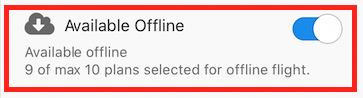
- Enable Offline. Select the toggle for Make Available Offline.
- Allow the plan to fully sync. Do not close the DroneDeploy app until the plan has completely synced.
- Verify Offline Status. Before going to the field, ensure you are logged into DroneDeploy and the plan now shows the status: Available Offline.
Key Features/Details:
- Storage Limit: You can store up to 10 project base maps on your mobile device or RC.
- Offline Status: Once the plan has synced, the plan status will change to Available Offline.
Offline Flight Management
The Offline Flight Management screen lists all offline maps stored on your mobile device or RC.
- Accessing Management: You can find this screen in the main menu (top right) or by using the Manage button when enabling or disabling Offline Flight for a specific plan.
- Managing Storage: There is a limit of 10 offline maps. Customers must remove old maps to free up space on their mobile devices and add new ones. You can use the Remove button to delete plans and free up space.
Limitations/Considerations:
- Device Limit: You can only access Offline Flight Planning on your mobile device or RC; it is not available on a desktop or laptop.
- Storage Cap: There is a maximum limit of 10 stored offline maps.
- Synchronization: The entire plan must fully sync before you close the DroneDeploy app.
- The "Make Available Offline" toggle is only available for Standard Map Plans. Offline capture works for different plan types, but you must first create the Standard Map Plan and make it available offline.
V2.2