DroneDeploy provides a unified platform to capture, upload, view, and manage various media types from your job site, including photos, videos, and panoramas (panos). Leveraging both aerial and ground capture, these media types allow you to track visual progress, perform inspections, and enhance project documentation.
Key Media Types
DroneDeploy supports the following key media types for comprehensive site documentation:
2D Photos (Progress Photos): Capture 2D images from your phone, or upload them from your camera roll, for on-the-spot documentation and collaboration.
Walks (360 Virtual Walkthrough): Capture a continuous path of 360-degree imagery, typically on floor plans, for virtual walkthroughs.
360 Panoramas (360 Pano): Capture a single, high-quality 360-degree image anywhere on site. All panos uploaded to DroneDeploy are processed at over 130 megapixels for high resolution viewing.
Video: Plan and execute video flights to capture smooth, high-quality video of your site.
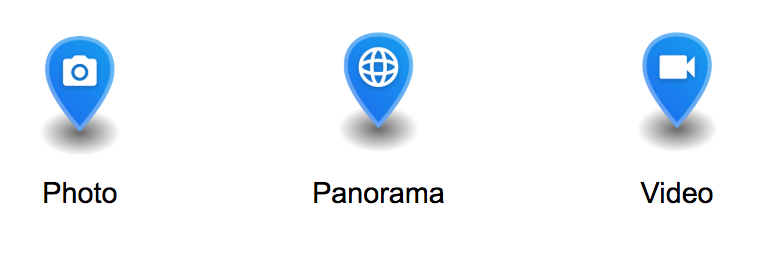
Availability
Media capture features are available to all users. However, uploading and hosting media (including photos, videos, and panoramas) are reserved for customers with the following plans:
Individual
Advanced
Teams
Enterprise Plan users
Note: Progress Photos created using the Walkthrough app are available to all trial users or customers with a 360 walkthrough subscription.
How to use Media
Upload Media to DroneDeploy
You can upload videos and panoramas to DroneDeploy in addition to maps and photos.
Upload videos on dronedeploy.com. Videos will be transcoded to multiple sizes for optimal streaming.
Upload panoramas via your mobile device or on dronedeploy.com. DroneDeploy processes the source images into a completed panorama.
For uploading Walk data, follow these steps:
Click the UPLOAD tab.
Click New Upload. For .insv files, click New Upload.
Locate your Walk files (insv or MP4).
Drag and drop the .insv or MP4 files. Ensure each Walk has two .insv video files unless captured with a OneX4 or OneX5, which only has one .insv file.
View and Manage Media
View Latest Media: When you click to view your project from the dashboard, the latest drone data will display on the EXPLORE tab:
Media Gallery: Multiple photos in the same location (from a walk or 360 pano) are visible in the Media Gallery. If only one photo exists in a location, all other photos from the project will be viewable in the Media Gallery.
Media Groups: Automatically cluster media that are captured close together in time and space so that pins are easier to work with when you’re zoomed out. When you select a media group, DroneDeploy opens the latest capture from that location in the viewer and lets you scroll through historical captures for the same area in the side panel or Media Gallery.
Media groups are calculated separately for interior and exterior views. By default, interior media are grouped within approximately 6 inches, and exterior media are grouped within approximately 10 feet of one another.
You can control how tightly pins are grouped using the Project Media Grouping Radius in your project settings. Increasing the radius combines more nearby pins into a single group; decreasing the radius keeps pins more independent so you can see more individual locations.
How moving media affects groups
When you enable Move Mode to reposition a specific photo, pano, or video, DroneDeploy temporarily treats the item you’re moving as its own pin, separate from the group it originally belonged to. This is why you may see more pins in Move Mode than you see in the normal view.After you drop the media in its new location, DroneDeploy recalculates media groups in real time using the updated positions of all media in the project. As a result:Two smaller media groups may merge into one larger group.
A group can appear to “disappear” if all of its media now belong to other nearby groups.
It may look like multiple images moved, even though you only moved one item, because the grouping structure changed around it.
This behaviour is expected and reflects how the system continuously optimizes groups based on the latest media locations.
Tip: See exact media locations while moving pinsIf you’re troubleshooting media grouping and want to see every media item individually while you move pins, you can temporarily turn off grouping on the web app:
- Open the project in the web app.
- Click the gear icon in the upper-right corner to open Project Settings.
- Find the Project Media Grouping Radius setting.
- Set the radius to 0 (zero) for Interior and/or Exterior. This disables grouping so each media item appears as its own pin at its exact location.
- Reposition your media using Move Mode.
- When you’re done, restore your usual grouping radius so pins are clustered again for easier viewing.
This workflow makes it much easier to verify that only the intended media item was moved while still taking advantage of grouped pins in day‑to‑day use.
*Disabling Media Grouping
To disable media groups you can simply change the values for the Exterior and Interior to '0' zero which would disable the media groups for the respective Exterior or Interior views as shown below:
Media Comparison: The side-by-side comparison feature allows you to compare two media items of the same type (e.g., aerial panoramas to other aerial panoramas, 360 Panos to other 360 Panos) to track progress over time.
Progress Reports: Automatically generated Progress Reports display panoramas, videos, and photos from your job site. Both aerial and ground media will display, but walks are not included.
Move Media Pin: Users with Editor or higher permissions can adjust the location of individual Media Pins (photos, panoramas, videos, 3D captures, and vertical imagery) on the Exterior Map or Interior Levels.
How to Utilize Date Ranges
Utilizing Date Ranges in DroneDeploy Walkthroughs is simple and user-friendly:
1. One-Click Buttons: Upon accessing the Walkthroughs media gallery, you will find the one-click buttons right at the top. Click on "All Time," "Past 7 Days," or "Past 30 Days" to quickly filter the media as per your requirement.
2. Custom Date Filter: To access the custom date filter, click on the "Custom Date" option, and a calendar will appear. Select your desired start and end dates, and the media gallery will automatically update to display content from the specified range.
3. New Default: Now, whenever you access DroneDeploy Walkthroughs, you will see the media from "All Time" by default, saving you time and effort in filtering manually.
Key Features/Details
Enhanced Viewing and Comparison
High-Resolution Panoramas: All panos are processed at over 130 megapixels for an immersive, full-resolution viewing experience on your mobile device.
Side-by-Side Comparison: This feature unlocks the ability to compare 360 Panos and aerial panoramas, including linked panning for reviewing change over time.
Date Switcher: Use the date switcher in the top bar to adjust which media is being compared.
Reporting and Documentation
Field Note Reports: Create a Field Note Report for a specific walk conducted on your job site by selecting the date and individual walk, then select Print to save the report as a PDF.
Field Notes on Panos: You can create and manage field notes directly on 360 Panoramas and 360 Walks. Field notes are also supported on still images, 3D models, 2D models, and orthomosaics.
Ground App Tools
X-Ray Mode: Align previously taken photos with your phone camera in the Mobile Ground app. This provides an overlay of a previous photo and the live feed from your camera so you can see behind walls or poured concrete while on site.
Add Locations: Select Add under the Overlays tab, then scroll down to Locations. Use the polygon, rectangle, or radius tool to draw around the location and then name and group the location appropriately.
Limitations/Considerations
Video and Panoramic Flights
Panoramic Flight: Incompatible drones/cameras include: Phantom 3, Inspire 1, Mavic Air, all thermal cameras, and all 3rd Party Cameras, and DJI Zenmuse X7.
Video Flight: Incompatible drones/cameras include: Inspire 1 and Phantom 3 Line. For Mavic 2 Pro, set the video format in DJI GO.
Panoramas: The capture of 360 Panos is exclusive to the 360 Camera and cannot be accomplished solely using the mobile device. Preprocessed panoramas captured with a different, unsupported camera can be uploaded.
Comparison Mode
Media Type: Compare Mode only supports the comparison of the same type of media (e.g., Aerial panoramas to Aerial panoramas).
Single Instance: If only one instance of a media type exists on the project exterior or level, comparison is not supported until more media is uploaded.
Field Notes: Field Notes are not supported on aerial or 360 panoramas.
Field Note Report: Field notes made on Interior 360 Panos do not populate in the Field Note Report.
Saving Adjustments: Camera positioning adjustments made during comparison are not currently saved.
Move Media: Move Media is currently available exclusively on the web version of DroneDeploy.
General
Field Notes on Videos: Standard videos do not support field note creation.
FAQs
Q: What if I do not see or want to delete my Media Marker?
A: If you have two or more Panoramas at the same location, you may not see all the media markers on your map. If you want to delete or move a media marker to a new location, please reach out to Support.
Q: Can I move more than one media type at a time?
A: Move Mode allows users to adjust the position of only one capture at a time. This does not apply to groups.
Q: Who has access to move media pins?
A: Move Mode is restricted to logged-in users with Editor or higher permissions on a project.
V2.2