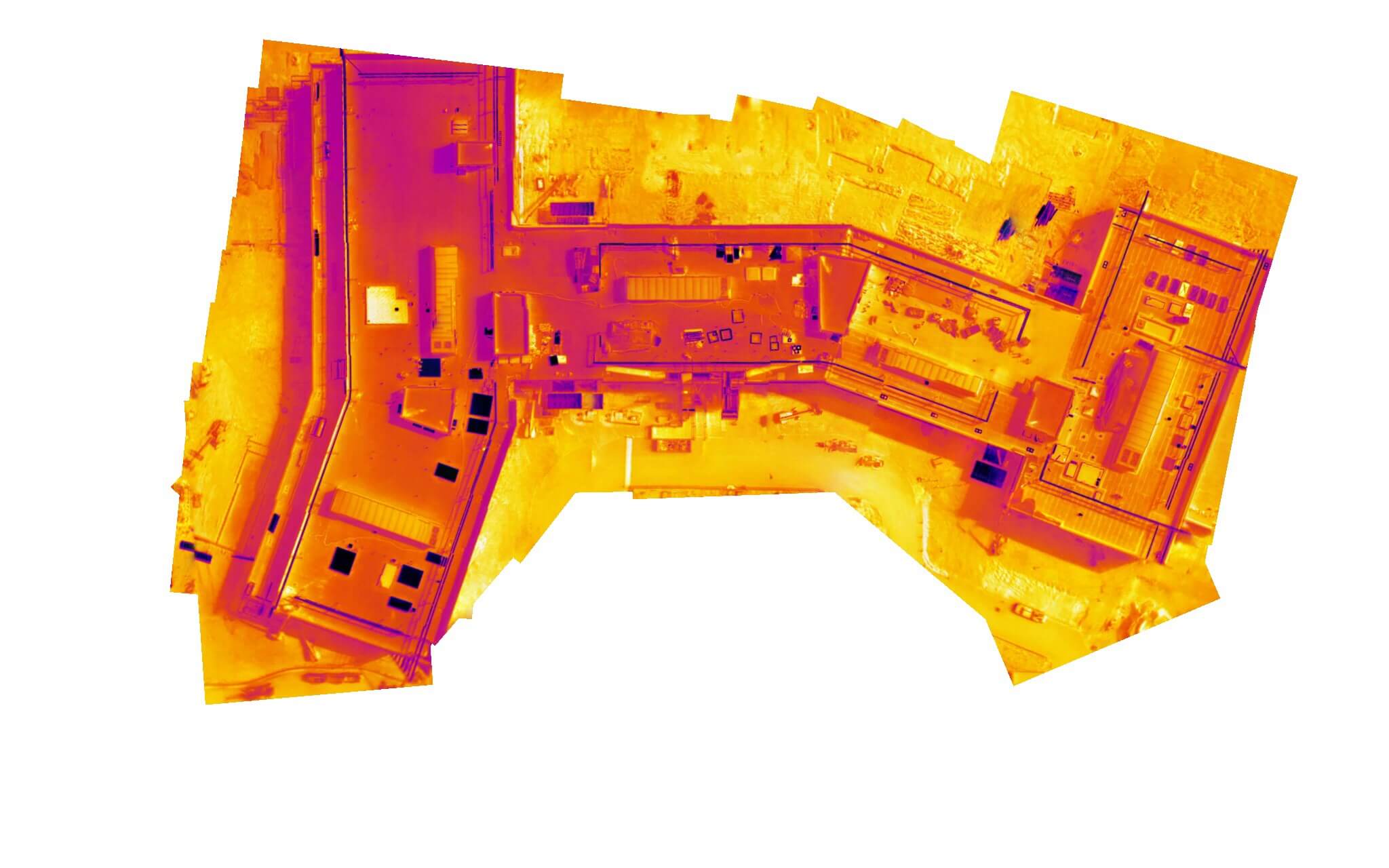
Thermal mapping enables the capture and analysis of temperature data across a site using specialized sensors. DroneDeploy supports thermal mapping through the Thermal Roof Inspection app, Thermal Radiometric Processing and real-time visualization via Thermal Live Map.
Availability
Thermal Radiometric Processing and Thermal Live Map are Enterprise features.
Contact the DroneDeploy sales team to discuss Enterprise plan options.
Required Hardware
Hardware compatibility determines feature availability. The Recommended & Supported Drones page provides a complete list of supported drones and sensors for flight and processing.
Common hardware for thermal processing with DroneDeploy:
| Drone/Sensor | Required Sensor Specs | Type of Thermal |
| DJI Mavic 2 Enterprise Dual* | N/A | Non-radiometric |
| DJI Mavic 2 Enterprise Advanced** | N/A | Radiometric |
| DJI Mavic 3T | N/A | Radiometric |
| DJI Matrice 4T | N/A | Dual, Thermal & Radiometric |
| Anzu Raptor T | N/A | Radiometric |
| DJI Mavic 30T** | N/A | Radiometric |
| Zenmuse H20T | N/A | Radiometric |
| Skydio X10 | N/A | Radiometric |
| Sony ILX-LR1 | N/A | Radiometric |
| FLIR Boson/Boson+ | N/A | Radiometric |
*The Mavic 2 Enterprise Dual is currently not supported for radiometric capture.
**The Mavic Enterprise Advanced and M30T hardware are not supported for waypoint flight with DroneDeploy. Processing is supported.
*** DJI is no longer manufacturing the XT2 sensor. For mapping with the M300, DJI recommends the H20T.
Sensor-Specific Guidance
DJI Matrice 300/350 and Zenmuse H20T
The H20T camera produces three image sets: a 12MP Wide-angle image, a 20MP zoom image and a 640x512 IR photo. During a DroneDeploy flight, the system captures only the IR thermal and zoom lenses. Refer to the Dual-Mode Processing section for instructions on handling these datasets.
DJI Mavic 3 Enterprise Thermal (M3T)
The M3T is a thermal workhorse that supports both flight and processing. It utilizes a 640 x 512 thermal lens alongside wide-angle and zoom lenses.
Dual Capture: To capture both RGB and thermal images, enable both Infrared and Visible options in
Thermal Roof Inspection App
We recommend the Thermal Roof Inspection app to ensure sufficient image overlap for high-quality thermal reconstructions.
The app is optimized for drones with specialized thermal cameras such as the DJI M200/210, FLIR XT/XT2 and Inspire 1.
High-overlap capture provides the best quality results during map processing.
[!IMPORTANT] DroneDeploy saves flight adjustments made in the app. However, if you refresh the page, the interface returns to app defaults even though your settings remain saved.
Enhanced Thermal Flight
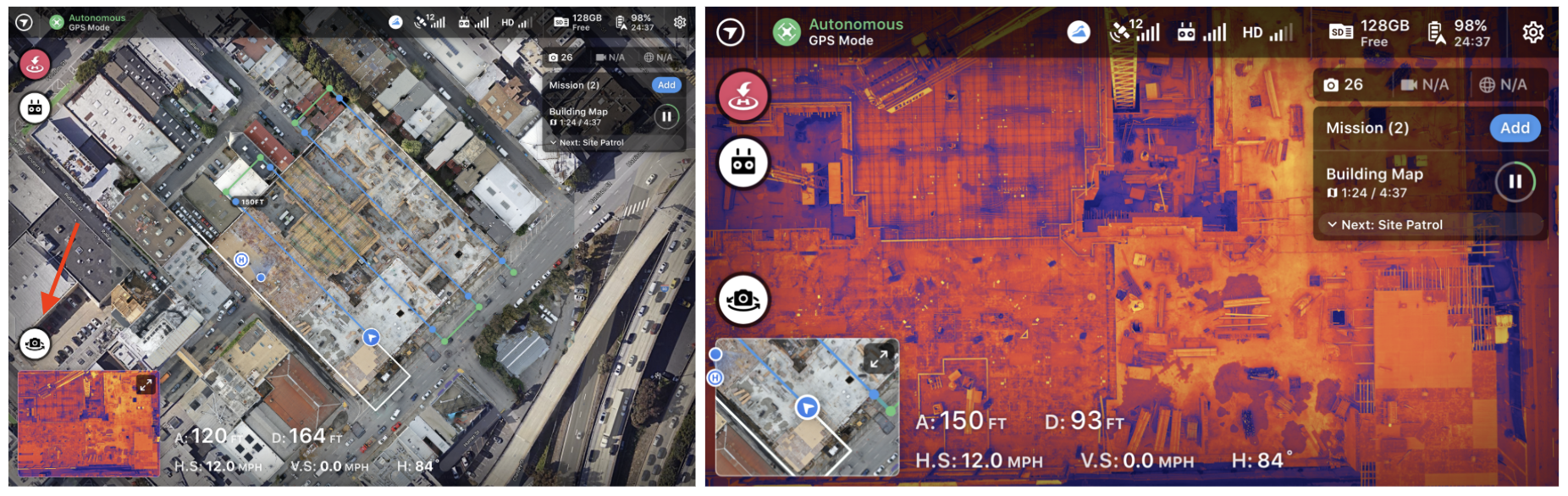
Enhanced Thermal Flight Control allows pilots to toggle between RGB and thermal views during a mission. This is available for dual-camera drones (e.g., XT2, Mavic Dual) on Advanced, Teams and Enterprise tiers.
Start your mission using your preferred capture method.
Click the Camera Toggle to switch between RGB and Thermal View.
Use this feature to inspect assets or highlight issues one camera may not easily see. This can be used during live mapping or manual flight.
Thermal Live Map
Thermal Live Map provides instant thermal visualization on supported iOS devices.
Device Requirements: For optimal performance, use an iPhone 13 or iPad Pro (5th Gen) or newer.
Altitude: Maintain a minimum flight altitude of 150ft (45m) above the target.
Solar Mapping: Align flight paths parallel to solar panel rows and avoid mid-day flights to reduce glare.
Commercial Roofs: Set the flight plan slightly inside the roof perimeter to minimize edge artifacts.
Elevation: Avoid areas with elevation changes greater than 75ft (25m), as tall buildings can cause stitching errors.
For additional tips on drone inspections for commercial roofs, check out this video by FLIR: https://www.flir.com/suas/delta/delta-episode-9/
Thermal Radiometric Processing
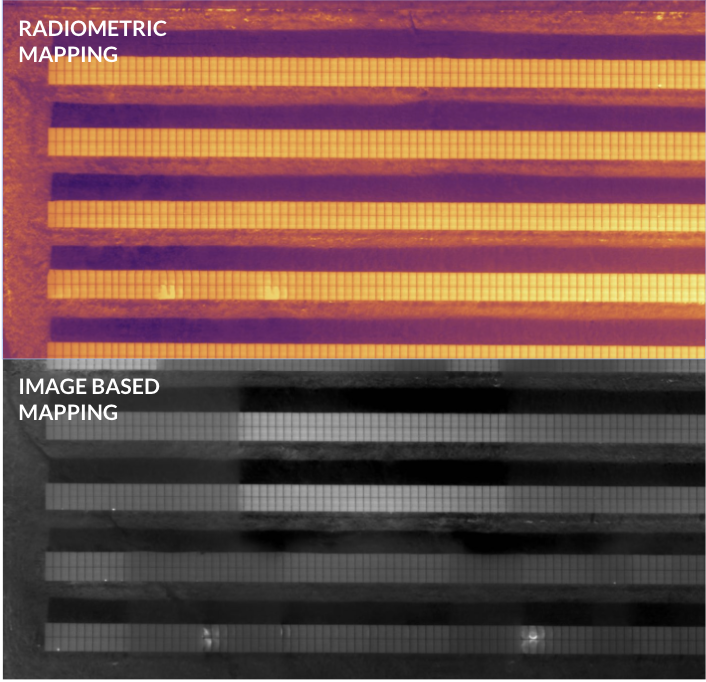
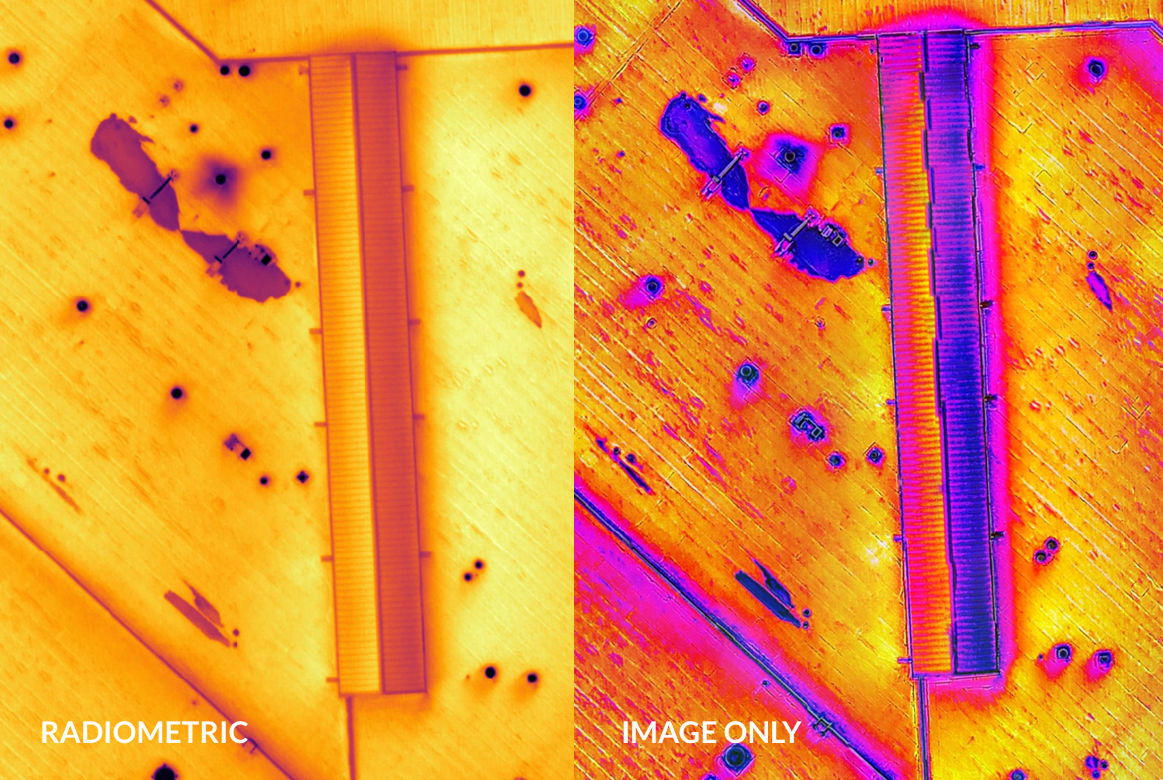
Enterprise users capturing radiometric thermal images can access Radiometric Thermal Processing. This workflow utilizes absolute temperature data embedded in image metadata to provide consistent thermal coloring across the map.
Common Uses: Water ingress, roof degradation, pipeline leaks and solar module defects.
'Dual-Mode' Standard and Radiometric Processing
For sensors like the Zenmuse XT2, you can upload both thermal and RGB imagery as a single dataset to produce higher-quality thermal maps.
Save RGB images and thermal images to their respective SD cards.
Upload all images (e.g., 300 RGB and 300 Thermal) to a single Map & Model in the Upload tab.
DroneDeploy uses the RGB imagery for high-resolution context and textures the model with the temperature data.
Note: To generate a side-by-side comparison (as seen in the Analyzing Radiometric Thermal Maps section), you must upload the RGB images as a separate standard map in addition to your thermal upload.
Ground Control Points (GCPs)
DroneDeploy does not support Ground Control Points (GCPs) for thermal or radiometric processing. To achieve high accuracy:
Use an RTK or PPK workflow with supported hardware (e.g., M3T, M4T).
Alternatively, capture a matching RGB dataset with GCPs and use the RGB map for precise measurements while using the thermal layer for anomaly identification.
Analyzing Thermal Maps
Annotations, measurements, and field notes work great with Thermal Maps. Annotations can mark problem areas, such as the locations of offline or deficient solar panels. Measuring tools can approximate the scale of water damage on a roof when estimating repair costs.
Analyzing Radiometric Thermal Maps
Non-radiometric thermal data is excellent for identifying relative hot and cold spots, which could indicate problems you need to address. Still, it does not allow you to compare actual temperatures. You may also use the side-by-side comparison tool to compare a thermal map of your location to a regular photo map to help you better understand what might be causing a hot or cold spot. Select your thermal map, enter side-by-side mode, and select a comparison map that does not have a thermal layer present.
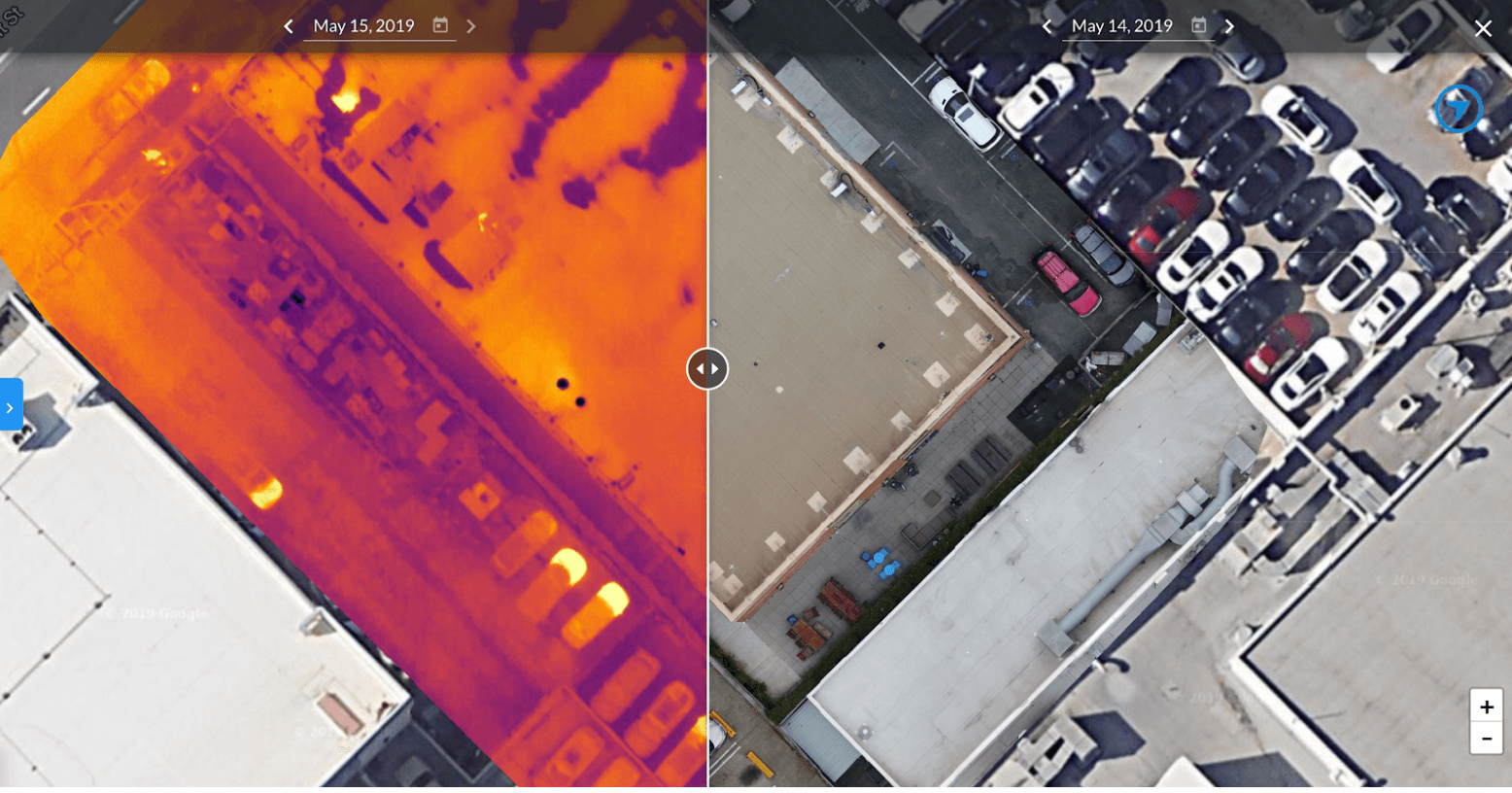
For radiometric thermal maps, you can inspect the temperature at a specific point or adjust your visualization to identify areas of your map that may be outside of acceptable temperature ranges.
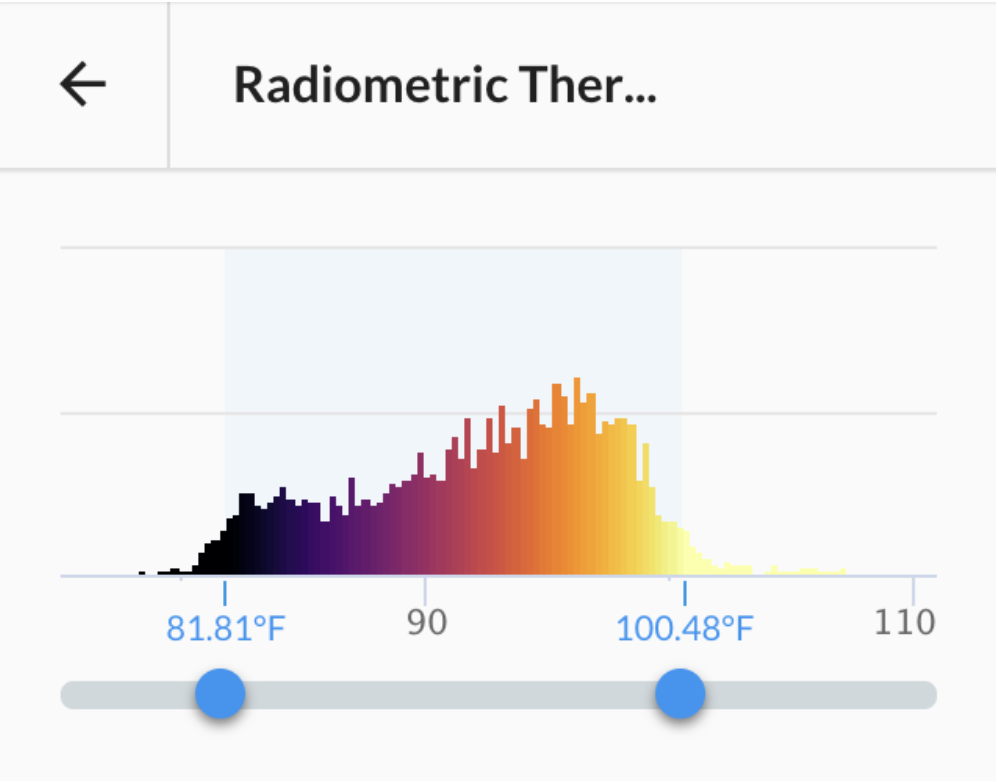
Please remember that your temperature measurements can be as accurate as the sensor used to capture the data.
Note: Range settings currently only apply to 2D viewing. Your 3D thermal map will show the full range as captured by the images metadata.
Resolution on Thermal Maps
Thermal resolution is generally 1/5 of standard RGB resolution due to sensor limitations.
| Altitude | Ground Sampling Distance |
|---|---|
| 150ft | 2.5 in/pixel (6 cm/pixel) |
| 250ft | 4 in/pixel (10.5 cm/pixel) |
| 400ft | 6.5 in/pixel (17 cm/pixel) |
FAQs
Q: Can I make thermal maps with DroneDeploy? A: Yes. DroneDeploy supports thermal mapping through the Thermal Roof Inspection app, Thermal Radiometric Processing and Thermal Live Map.
Q: Does a mission produce both RGB and thermal maps simultaneously? A: No. A mission produces a thermal map. To create a side-by-side comparison, upload the RGB images as a separate standard map via the Smart Uploader.
Q: Should I warm up the camera before flight? A: Yes. Turn on the drone and allow the thermal camera to warm up for 3-5 minutes before beginning capture.
v2.2