Vertical flight (also known as facade flight) captures the sides of structures that top-down photography cannot see. This flight mode creates high-resolution photos with consistent overlap from top to bottom, providing the necessary data for 3D reconstruction and detailed facade inspections in DroneDeploy.
Availability: Who has access?
- Vertical Flights and Inspections are included in the Enterprise subscription.
Getting started
To begin, locate the Facade option in the flight mode list and create a new plan.
Configure flight settings
Adjust the following settings to align the flight with your mission requirements:
- Align the Facade: Drag the Facade element on the map to align it with the surface you want to capture.
- Travel Altitude: Set the altitude the drone maintains while traveling to and from the capture area. Ensure this altitude clears all obstacles.
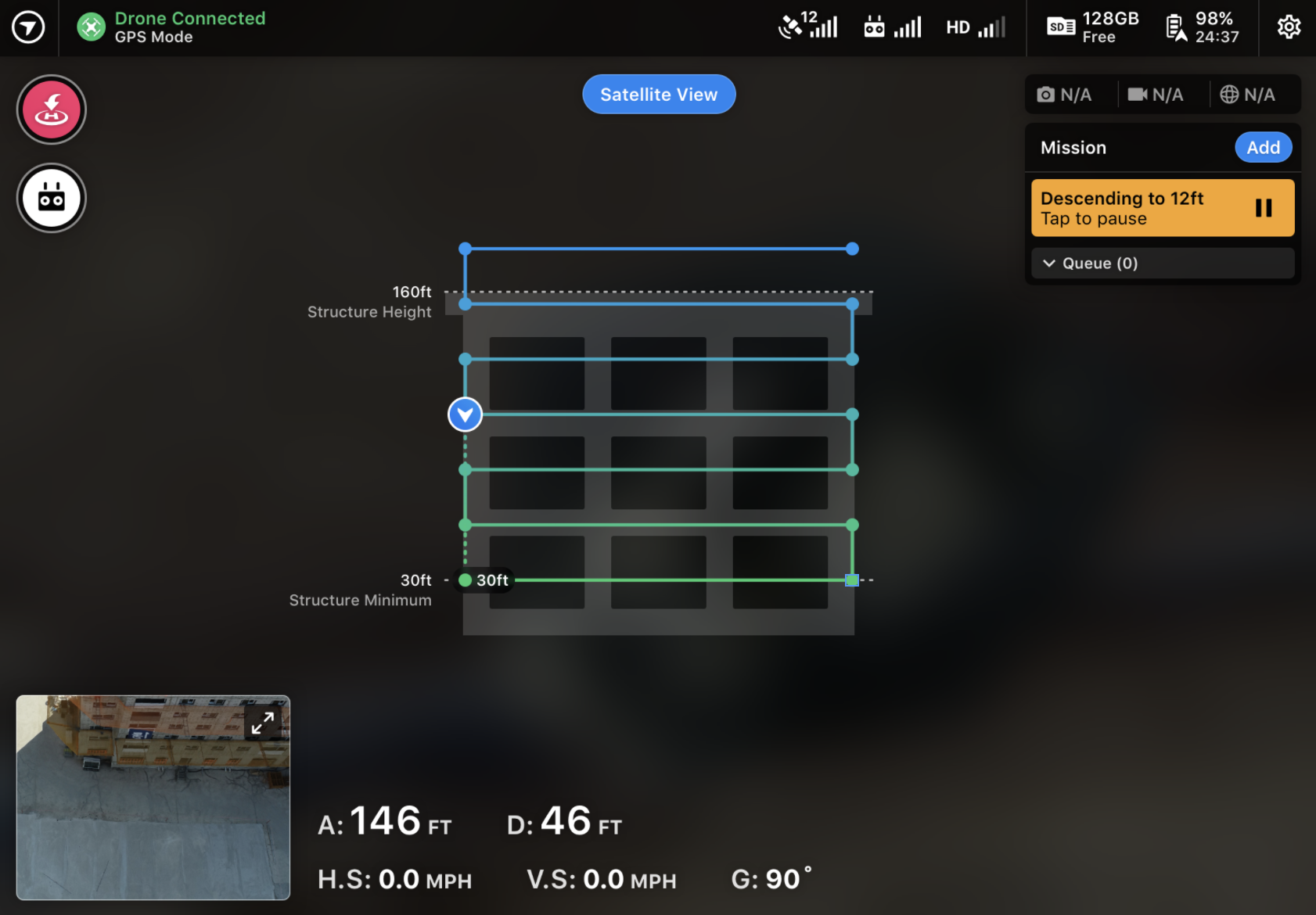
- Structure Height: Set the height of the facade. For best results, use the actual height of the structure.
- Lowest Altitude (Structure Minimum): Set the minimum altitude for the flight path. The drone maintains at least this altitude throughout the mission.
- Capture Distance: Define the distance from the facade. This setting determines the flight path offset.
Visualizing the flight
You can switch to Vertical View to see a 3D visualization of the flight path. The app reflects your specific settings in this view.
Tap Satellite View at any time to return to the map layer.
Advanced settings
In the Advanced settings menu, you can further customize the mission:
- Overlap: Adjust both front and side overlap percentages.
- Flight Direction: Choose between bottom-up capture (default) or top-down capture.
- Gimbal Angle: The drone captures photos at 0° (head-on) by default. You may adjust this angle if needed.
Flying the mission
You must complete the pre-flight checklist before takeoff. To create a photo-realistic 3D model of an entire building, plan several Vertical missions—one for each side—and fly them together in a single Mission.
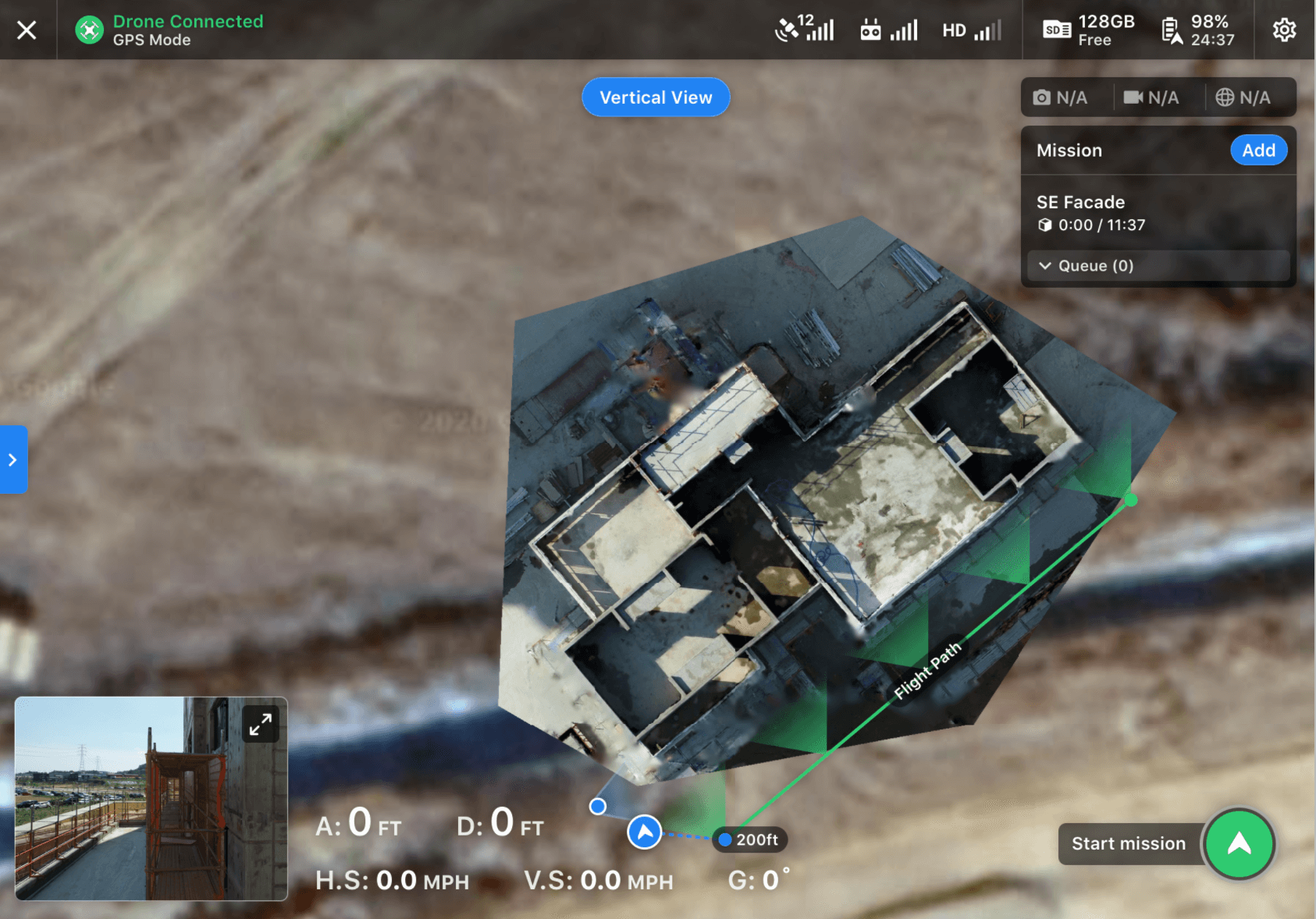
- Takeoff: Once the drone reaches the flight area, it descends from the Travel Altitude to the start of the capture path.
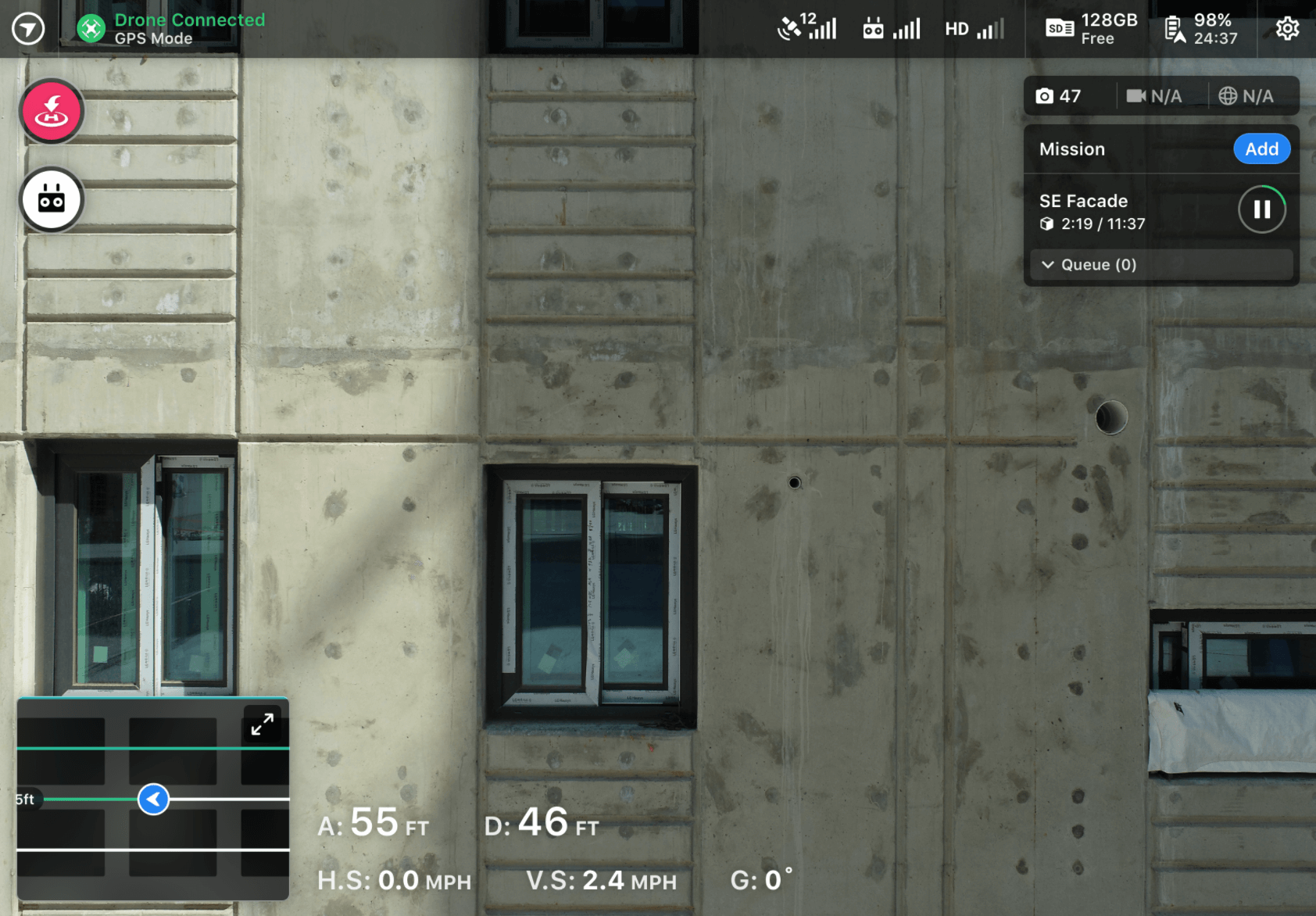
- Monitor Progress: The Vertical View appears automatically during descent. You can monitor the flight using First Person View, Satellite View, or Vertical View.
- Manual Capture: You can pause the flight at any time to take manual photos.
Upload and processing
After the flight, you can upload data via the mobile app or the web dashboard.
Web upload steps
- Log into your account.
- Open your Project.
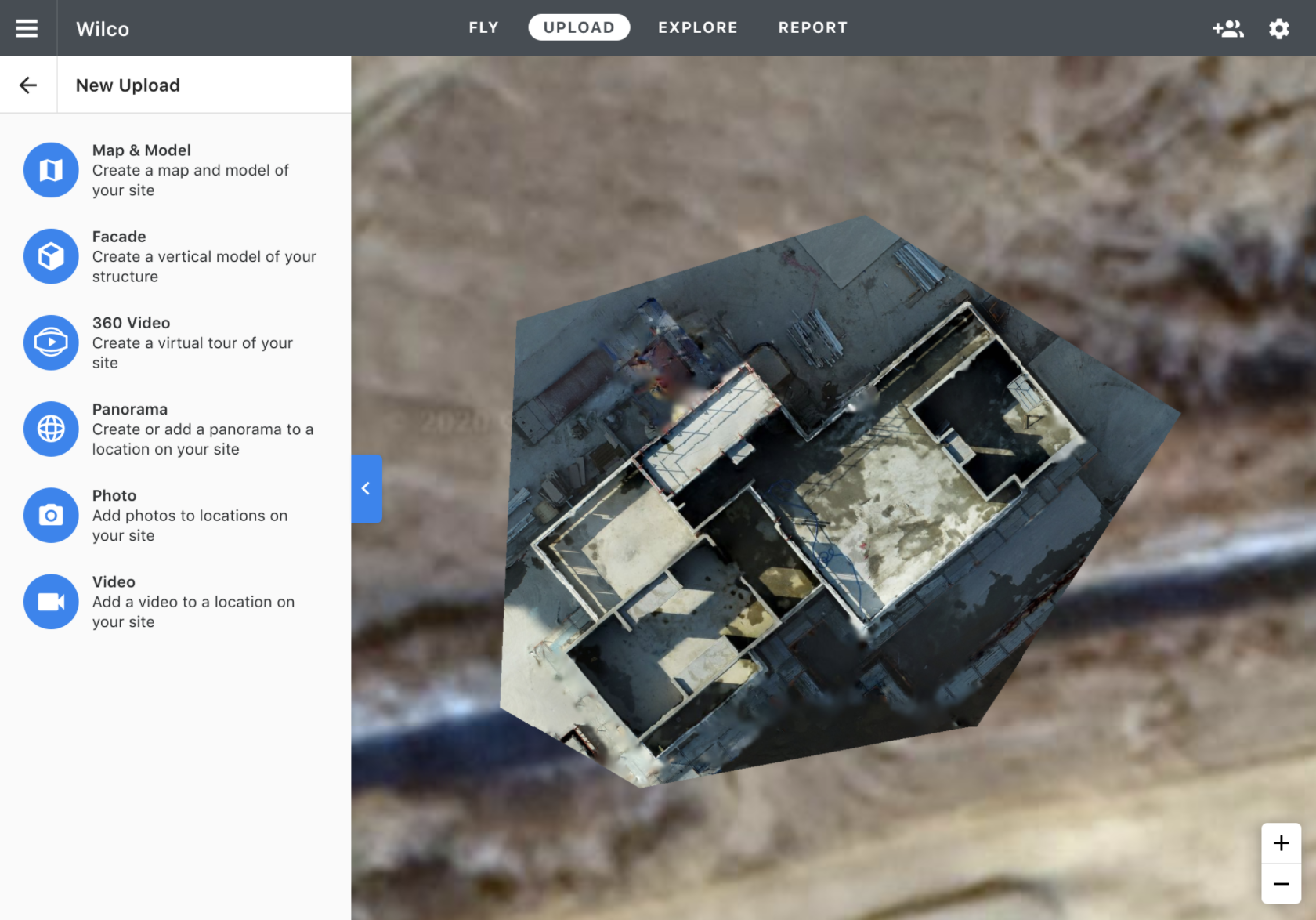
- Select the Upload tab.
- Choose the Vertical upload option.
- Select the Vertical plan type for a single facade, or Map & Model for full 3D models.
Limitations
- Flight path resolution depends on the Capture Distance and camera specifications.
- Ensure a stable GPS signal near the structure to maintain flight accuracy.
FAQs
Q: Does Vertical flight work for interior models?
A: This flight mode is designed for exterior facades. For interior spaces, refer to documentation on Walkthroughs.
Q: Can I combine Vertical flights with standard orbital flights?
A: Yes. You can add multiple flight plans to a single Mission to ensure complete coverage.
Q: What happens if I lose connection during the flight?
A: The drone follows the configured Return to Home behavior in your flight settings.
Performing inspections
Once processing is complete, view the results on the DroneDeploy website. Use the inspection tools to mark up, share, and export details.
For more information on navigating these flights after processing, check out this article: Facade Inspections