Saving your logs
The DroneDeploy app stops recording flight logs if you switch to the DJI app. Logging out of the DroneDeploy app deletes stored information, including flight logs. Ensure you sync or download your flight logs before logging out of the app.
Downloading flight logs
To access your logs:
Click the Project Settings gear icon to the right of the map name.
Select Flight Logs.
If no flight logs appear, leave the app open for 10 minutes while connected to a strong Wi-Fi connection to trigger a sync. You can also retrieve them manually using a USB cable.
Flight log viewer
DroneDeploy includes an in-application flight log viewer. This tool allows you to view telemetry and data from your most recent flights.
Navigate to the Project Settings menu.
Click View Flight Log.
You can also access this viewer from the main dashboard to see recent flight activity.
Interpreting flight logs with partner software
You can process DroneDeploy data using AirData to perform advanced analysis.
| Software | How To Guide |
|---|---|
| AirData | http://healthydrones.com/dronedeploy |
Troubleshooting
If flight logs do not appear in the plan options menu, they may have been generated while the mobile device was offline. Follow these steps to sync your logs.
Connect your device
Ensure your mobile device has a stable internet connection via Wi-Fi or cellular data, and open the DroneDeploy project for at least 10 minutes.
Force close the app
If the sync does not begin, force close and restart the app while connected to the internet. This action often triggers the upload process.
Accessing logs directly from the mobile device or RC
If the logs do not sync, access them directly via a computer.
iOS
Finder (macOS 10.15 and newer):
Connect your device to your computer using a USB cable.
Open a Finder window and select your device from the sidebar.
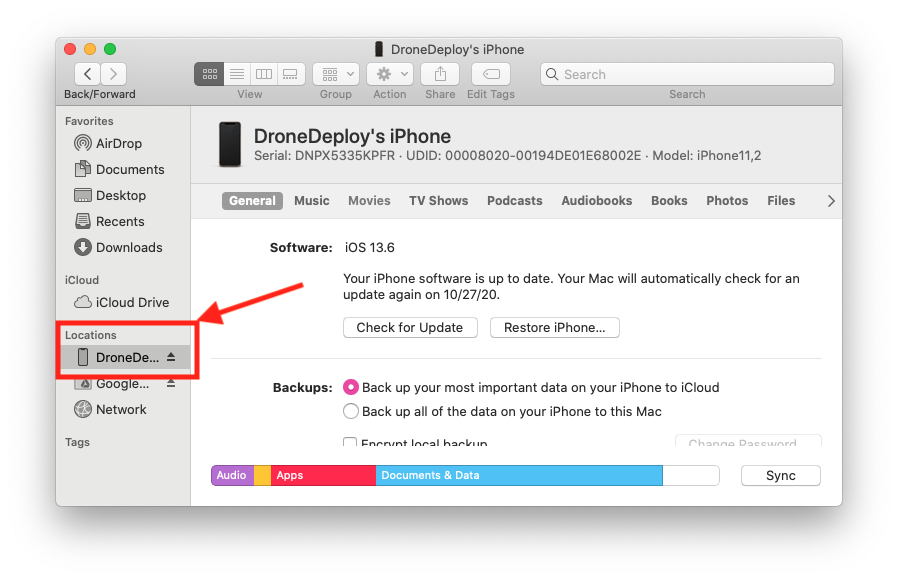
Click the Files tab.
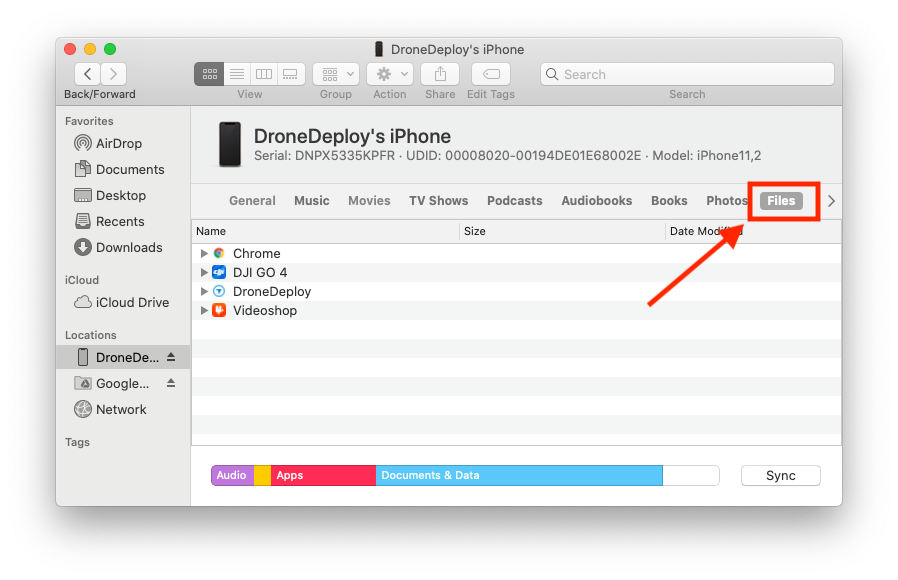
- Expand the DroneDeploy app folder.

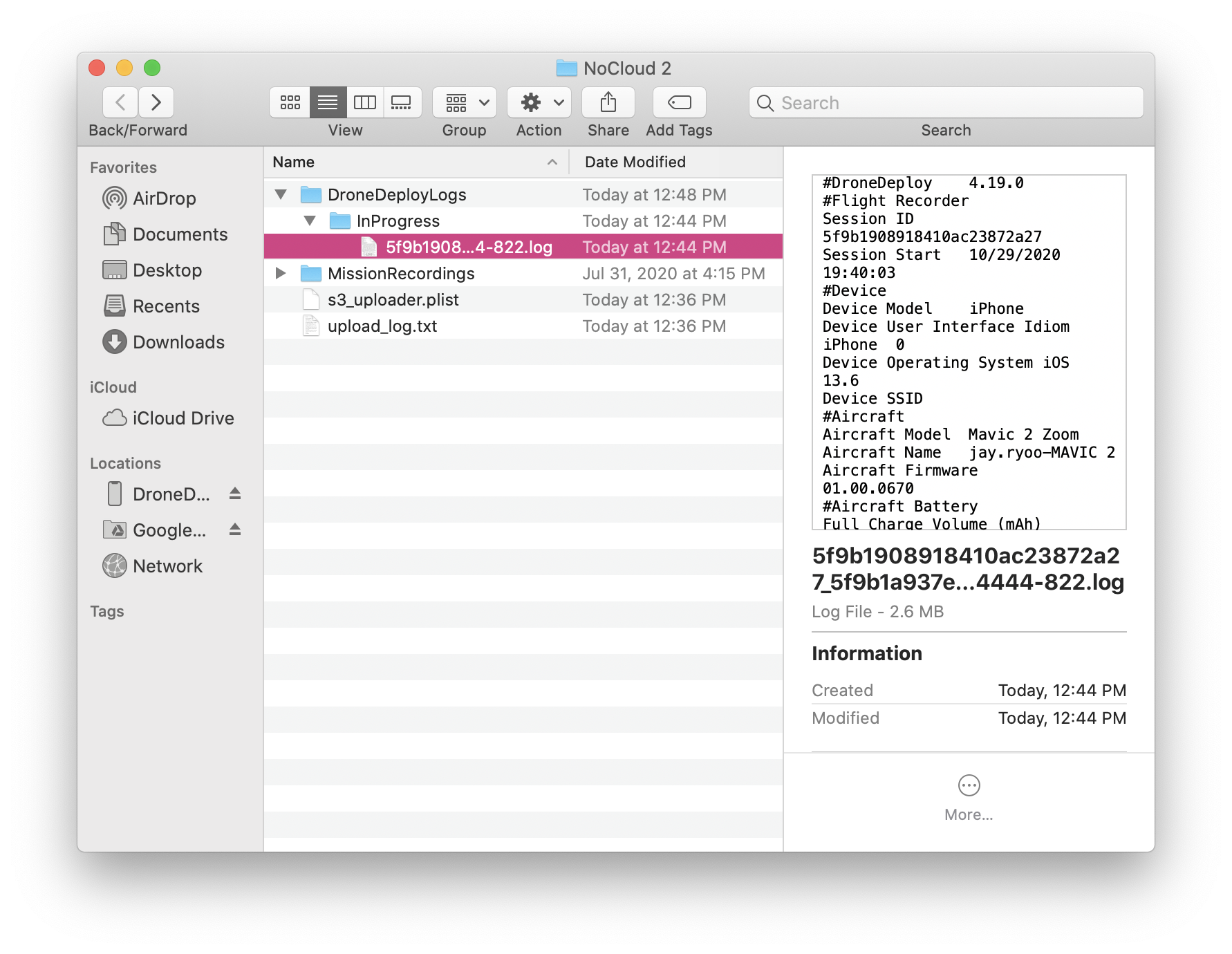
- Drag the NoCloud folder to your computer to create a copy. This folder contains the flight logs that must be synced to your dashboard.
- Click on the "NoCloud" folder to see your logs synced within DroneDeploy Logs.
iTunes (Windows or macOS 10.14 and older)
Open iTunes and connect your mobile device to your computer.
Click the Device icon in the top-left corner of the iTunes window.
Select File Sharing from the left sidebar.

Select the DroneDeploy app from the list.
Click the NoCloud folder in the right pane to view your logs.
Click Save... to copy the folder to your computer. This folder contains the flight logs required for syncing to your dashboard.
Android
Windows:
Connect your phone to your computer via USB and unlock the screen.
Tap the Charging this device via USB notification on your phone.
Select File Transfer under the Use USB for options.
Open the DroneDeploy folder on your computer and copy the log files.
macOS:
Download and install Android File Transfer.
Connect your phone and select File Transfer on the device.
Open the DroneDeploy folder in the Android File Transfer window and copy the logs.
Downloading DroneDeploy .LOG Flight Logs from the RC Pro/Plus
Follow these steps to locate and move .log files to an SD card where you can extract them.
1. Locate the flight logs
-
Open the Files app on the remote controller.
-
Navigate to the DCIM folder.
-
Identify the correct flight logs by checking the file timestamps.
2. Copy files to the SD card
Long-press a file to select it. You may select multiple files at once.
Tap the Three Dots icon in the top-right corner.
Select Copy to....This will take you back to the internal storage folders.
Tap the Hamburger Menu (three horizontal lines) in the top-left corner.
Select the SD Card.
Open an existing folder or select New Folder to create a destination.
Tap the destination folder and select Copy in the bottom-right corner.
Obtaining DJI DAT files
DJI DAT files are required when sending flight information to DJI Support.
From mobile device: Follow the connection steps above but navigate to the DJI Go/4 folder instead of the DroneDeploy folder to collect DAT files.
-
From the drone:
Download the version of DJI Assistant 2 compatible with your drone.
Connect the drone to your computer.
Click Log Export and follow the prompts to save the files.
v2.2