Overview
This guide explains how to navigate and manage your projects within the DroneDeploy platform. Projects streamline data organization by grouping all related flight plans, maps, media and reports for a specific location.
A project is a central location to organize all data related to a specific site or location. It makes it easier to find your data, re-fly missions at the same location and share a complete reality capture. You can create a new project or use the Quick Upload feature to automatically generate a project based on your imagery's EXIF data.
Availability
Projects are available across all DroneDeploy subscription tiers.
How-to/Usage
Create a new project
To begin, click New Project. Select the project's precise location and then click Create Project Here. Give your project a name that reflects its purpose, such as a location or a client name.
If you create a project first, you are taken to the flight planning page to plan your first flight.
If you have a dataset to upload, go directly to the Upload tab to create your first map.
Quick upload
Use the Upload icon to quickly create a project by uploading data without Ground Control Points (GCPs). This feature automatically generates a project based on your imagery's EXIF data, saving time. When uploading imagery with GCPs or PPK files, first create a project at the address and then upload your imagery.
Plan a new flight template
Your project can include several different types of flights. You can create multiple flight templates for a project, and each can be re-flown.
To create a new flight template:
Click +
Select the flight type
Adjust the flight geometry and settings
You can find multiple flight templates in the flight template selector.
You can plan flights on both desktop and mobile. To plan a flight on mobile, select your project within the mobile app. You go directly to the Fly tab where you can update settings and set up different missions.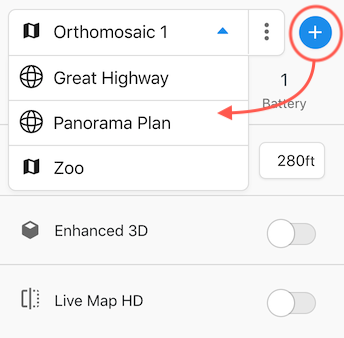
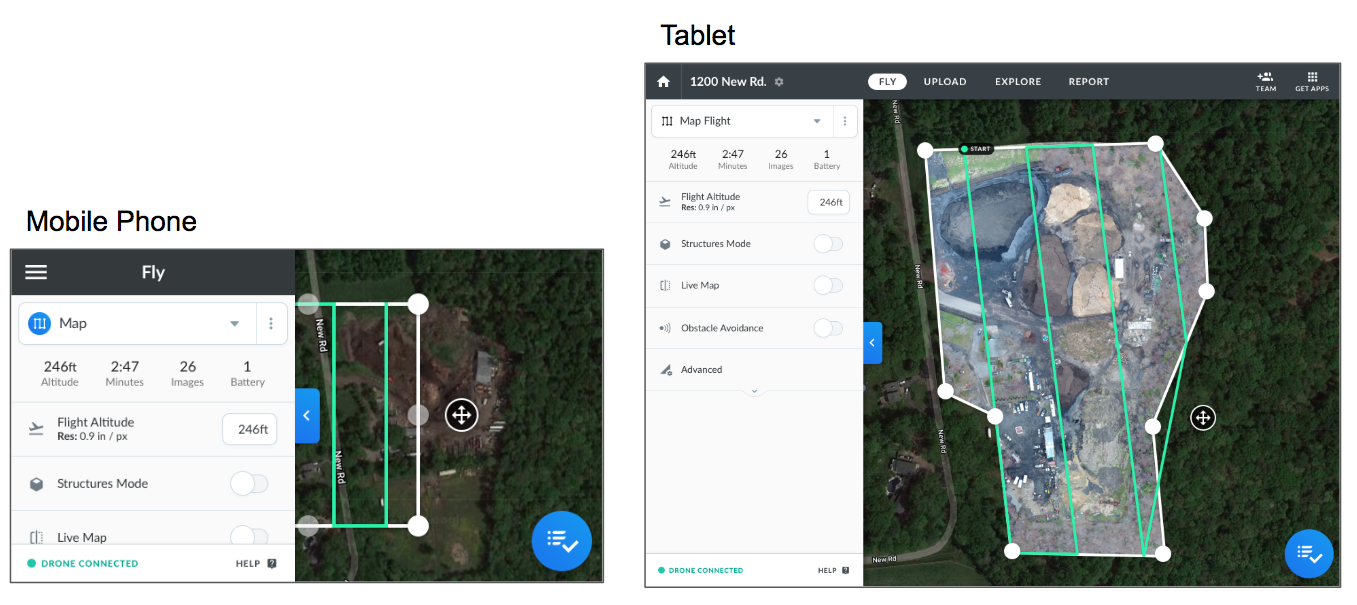
For more in-depth guidance on flight planning, check out Planning Missions.
Upload data to a project
After you fly your first mission, upload your dataset. Head to your project and click the Upload tab. Select the pending upload, or "flight card", that corresponds to your completed flight and click it to resume the upload.
To upload images from a flight not flown with DroneDeploy, or from different flights within the project, click New Upload under the Upload tab. After you select your images, click Open and then Upload Images. You receive an email when your map finishes processing.
Key features/details
Explore: Easily navigate back to your project from the dashboard to access your maps on the Explore tab.
Sharing: Click Share to share the entire project with collaborators, or share an individual map or report via a view-only link. Additional project-level permission settings are available to control team access. For more information, see Data Sharing .
Reporting: Navigate to the Reports tab to access annotation or progress photo reports. You can share or print reports for stakeholders. For more information, see Reports.
Exporting: To export map data, click Export at the bottom of the page. Customize the export options to fit your needs. For more information, see Exporting Your Data.
Help: Find relevant help information on most screens at the bottom of the sidebar.
Limitations/considerations
The Quick Upload button does not allow you to add Ground Control Points (GCPs) at the time of upload. You must create a project at the address and then upload imagery if you are using GCPs.
v2.2