The Autodesk Construction Cloud (ACC) Build integration allows you to export DroneDeploy map data and photos directly into your ACC project files. This connection enables you to sync DroneDeploy Field Notes with Issues in ACC and import drawings as overlays for seamless project management.
Note: The ACC Build integration is available for Enterprise users only. Contact our team to learn more about Enterprise options.
Availability: Who has access?
- Enterprise accounts only
- Available on web and mobile platforms
- Requires Account Admin permissions in ACC Build for initial setup
Install the DroneDeploy app on your ACC Build account
- Log in as an Account Admin on ACC Build and navigate to the Account Admin module
- Click the Apps tab
- Locate the DroneDeploy app and select it
- Click Install
Install the ACC app to your DroneDeploy account
- Navigate to the App Market icon on the left side of your dashboard
- Search for the Autodesk Construction Cloud app
- Click Install for My Organization
You can also install the application via the App Market webpage.
Configure your admin connection
To use auto-sync features, an admin must establish the connection between DroneDeploy and ACC Build.
- Navigate to Organization Settings
- Open the App Management page
- Select the Autodesk Construction Cloud app
- Sign in using your ACC Build admin account
Auto-sync drawing revisions and Progress Report photos
Auto-sync ensures that overlays in DroneDeploy always reflect the latest drawing revisions from ACC Build. You can also automatically export Progress Report photos.
- Navigate to Project Settings in DroneDeploy
- Select the ACC Build account and project
- Toggle on Auto-sync drawing revisions or Auto-export Progress Report Photos
- Photos from report plans will automatically sync to ACC Build when uploaded
Export your DroneDeploy map to ACC Build
- Select a map and click Export in the bottom left corner
- Select Auto and click Create New
- Select Autodesk Construction Cloud from the left panel
- Choose the correct account, project, and folder
- Click Select
.
You will receive an email notification once the export is complete.
Add an ACC Build dashboard card
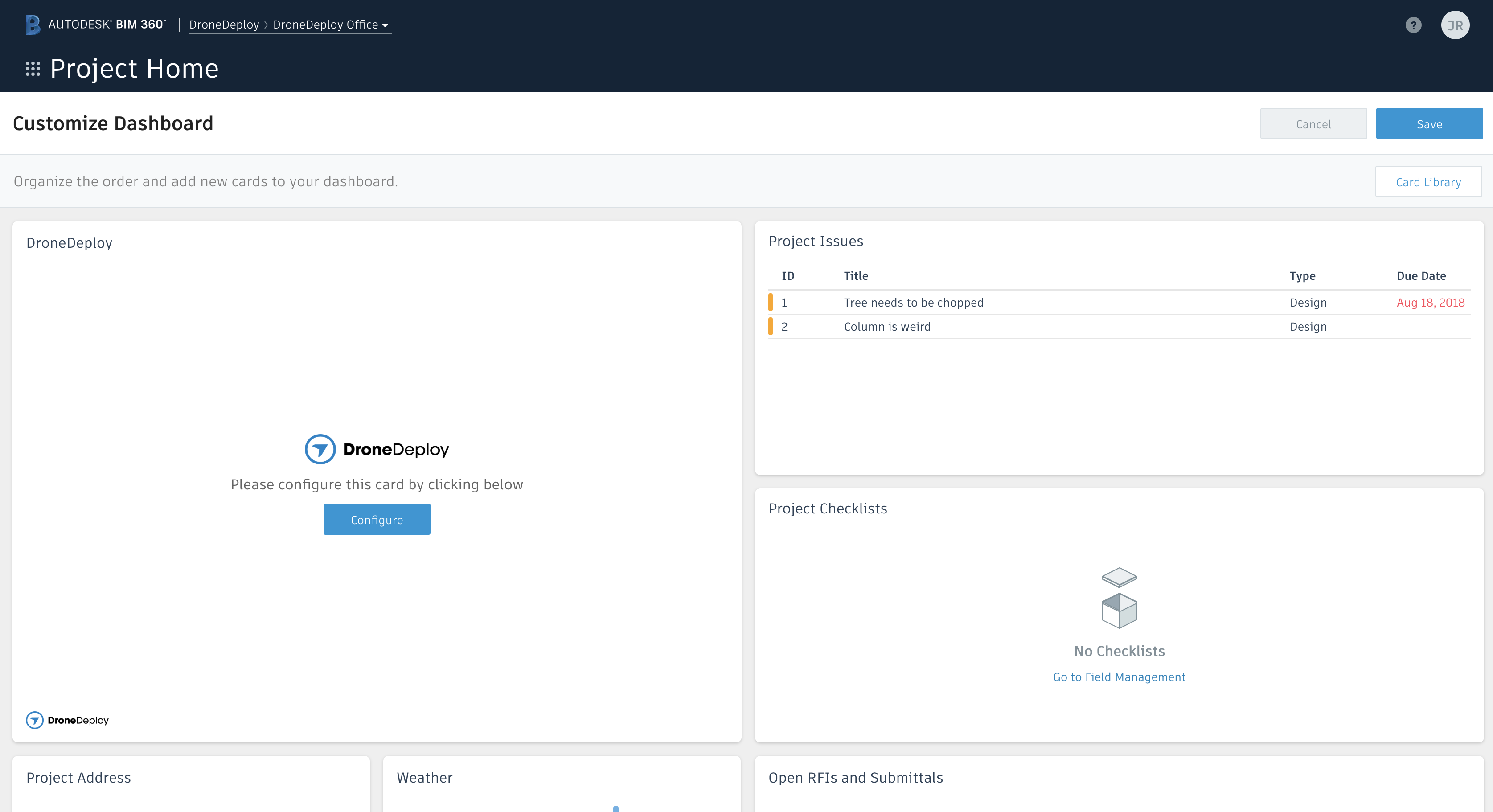
You can display your DroneDeploy project or 3D model directly inside ACC Build using dashboard cards.
- In DroneDeploy, click Share
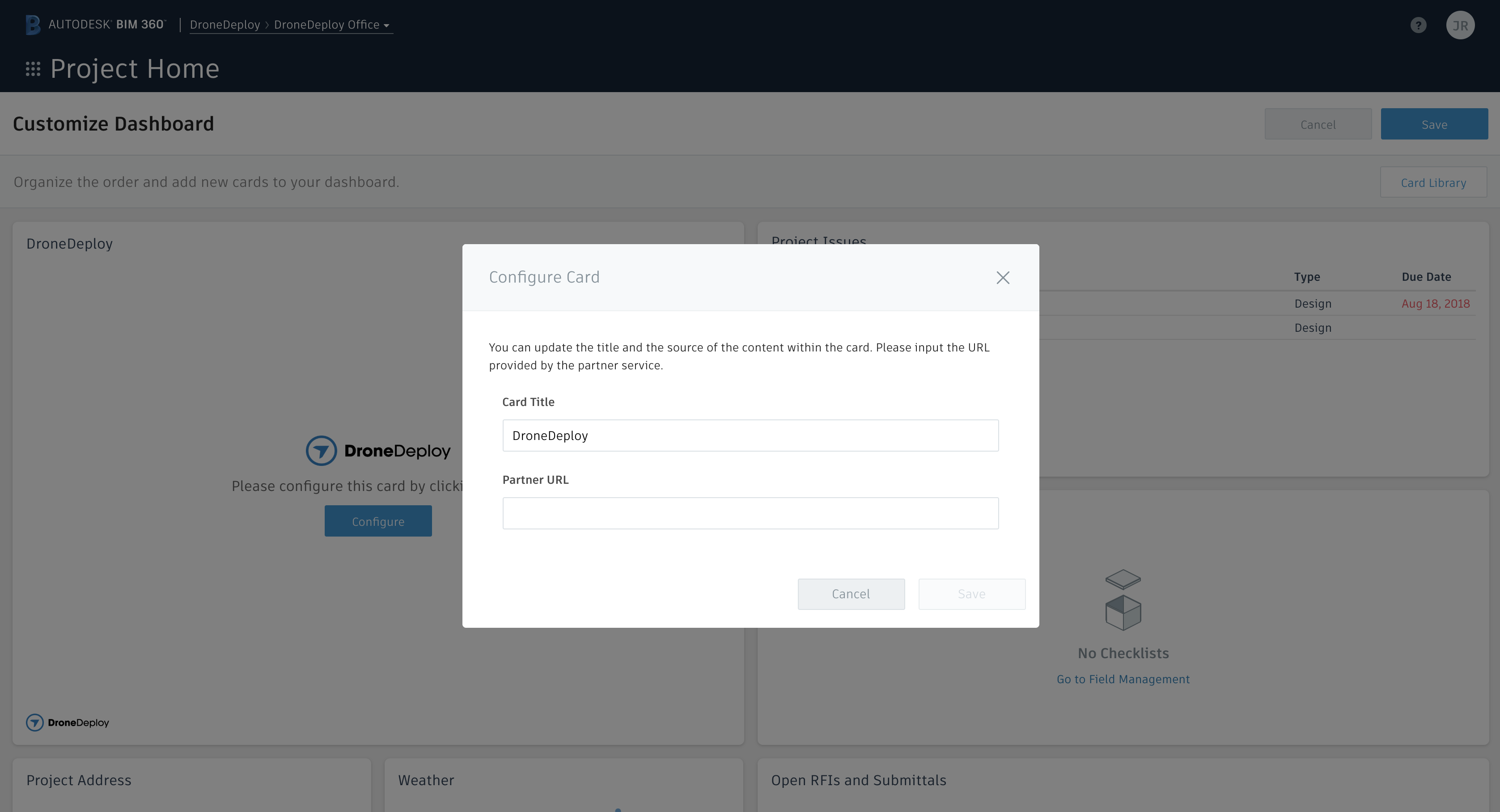
- Select Link Full Project and copy the URL
- In ACC Build, navigate to Insights and open Card Library
- Filter by Partner Cards and select DroneDeploy
- Click Configure
- Paste the link into the Partner URL field and click Save



Issue sync to ACC Build
- Navigate to Project Settings
- Select the ACC Build account and project
- Open a Field Note
- Click Send to ACC Build
The Field Note will appear as an Issue in ACC Build with a link back to DroneDeploy for context and editing.
Limitations and considerations
Walk exports are not currently available via the ACC integration.
User attribution for Field Note sync requires specific permission mapping.
One master user is signed in for the entire organization; this user must have upload permissions in ACC for all relevant projects.
FAQs
Q: Can I import drawings from ACC into DroneDeploy?
A: Yes. You can import drawings from ACC Sheets and ACC Docs as overlays for interior and exterior projects.
Q: Will drawings update automatically?
A: Yes. Drawings imported from ACC Sheets update automatically when you upload a new version to ACC.
Q: Why is pinned media not appearing in ACC?
A: Ensure the Auto-export pinned media toggle is on. Also, verify that the master user connected in DroneDeploy Organization Settings has upload permissions for that specific ACC project.
V2.2