DroneDeploy Ground’s "Mobile 3D Scan" feature enables users to create detailed 3D models of interior spaces using their iOS mobile devices. This technology allows for scanning and modeling buildings and enclosed areas, providing valuable digital representations of indoor environments for various applications.
This feature has been built and optimized for exterior scanning; however, feedback for interior scans is welcome. Until scans are supported for Levels, you can scan interior items on the exterior.
Availability
The Mobile 3D Scan feature is available to organizations with the Ground Pro add-on. If Ground Pro is not purchased and enabled on your account, Mobile 3D Scan will not appear as a capture option in the Ground App.
The Mobile 3D Scan feature is compatible with iOS devices that include a LiDAR sensor. This includes iPhone Pro or Pro Max models from 2020 onward, and iPad Pro models with LiDAR.
For a full list of supported devices, visit the Supported Devices for 3D Scan.
Use cases for Mobile 3D Scan
Site inspection: The Mobile 3D Scan feature assists in capturing detailed models of interior spaces, allowing construction professionals to track progress and ensure compliance with design plans. This visual documentation can help identify potential compliance issues or deviations from original specifications.
Remodeling and renovation: Accurate measurements and visualizations of existing interiors are essential for renovation projects. Users can model spaces with Mobile 3D Scan to facilitate planning, ensuring renovations are executed efficiently and accurately based on the digital model.
Facility management: Facility managers can create digital twins of buildings for maintenance, planning, and space management. This digital representation of the interior aids in coordinating activities such as space allocation, equipment placement, and infrastructure maintenance.
Design visualization: Architects and designers can use Mobile 3D Scan to provide clients with realistic visualizations of interior spaces. These models enable stakeholders to visualize layouts and design details, leading to better-informed decisions and more collaborative design processes.
How to use Mobile 3D Scan: Getting started
To get started, make sure you have the latest Ground App installed from the App Store and review the Capture Flow and Best Practices below.
Capture flow
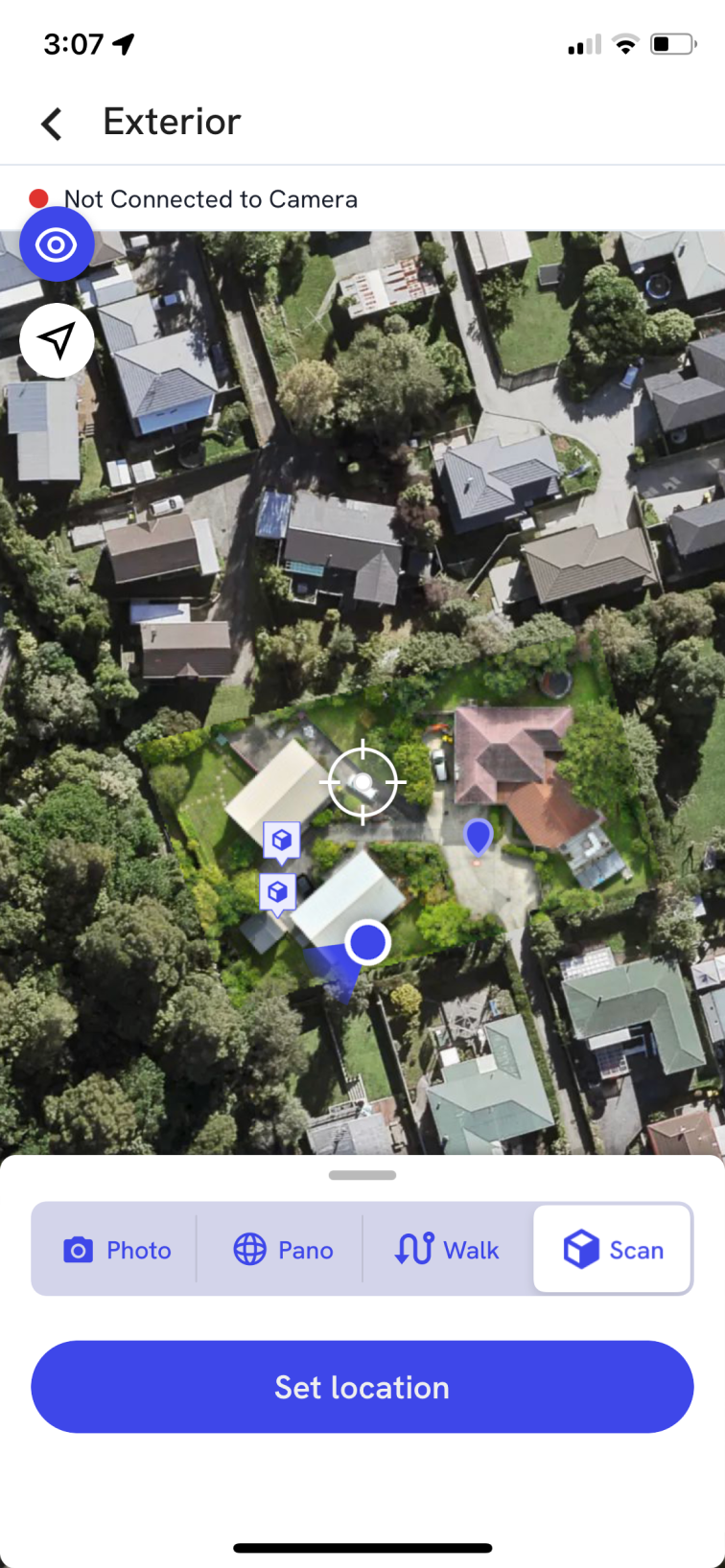
In the Ground App, select the Exterior of your project and enter capture mode.
Select the Scan capture mode and set your location with the crosshair.
Tap the red record button to start scanning. Be sure to follow best practices.
Tap the stop button to end the scan and proceed to upload your captures as usual.
Once processed, you will receive an email notification and be able to see your scans pinned to your project map.
3D Scan Tools and Annotations
Once your 3D scan is processed, you can use a range of built-in tools to measure, mark up, and communicate site information directly on the model.
Learn more about Tools and Annotations here.
Key features/details
The Mobile 3D Scan feature on the DroneDeploy Ground App enables users to create detailed 3D models of interior spaces using supported iOS devices.
3D model creation: Users can model the inside of buildings and enclosed areas.
Supported devices: The feature is compatible with iOS devices that include a LiDAR sensor, such as iPhone Pro or Pro Max models from 2020 onward, and iPad Pro models with LiDAR.
Data output: Once processed, scans are pinned to your project map.
- Capture modes: Choose a Regular Scan for standard 3D capture, or an RTK Scan for centimeter-level positioning accuracy using a supported RTK receiver. See the Quick Start Guide: 3D Mobile Scanning with RTK to get started.
Limitations and considerations
Viewing scans: All scan viewing is currently limited to the Web App.
Levels: Scanning is not yet supported on Levels. Please capture on the Exterior for now.
Raw data export: You can export raw scan data before syncing by tapping the unsynced pin. Export is not available after syncing.
- Map pins: Scan pins are placed automatically. Repositioning a scan pin on the map is not yet supported.
- Ground Control Points (GCPs): Aligning 3D scans to GCPs is not yet supported.
Further reading
For answers to common questions about scan quality, lighting, movement, and more, see the Mobile 3D Scanning FAQs article.
To learn how to improve your scan results with expert tips, see the Mobile 3D Scan Best Practices article.
V2.2